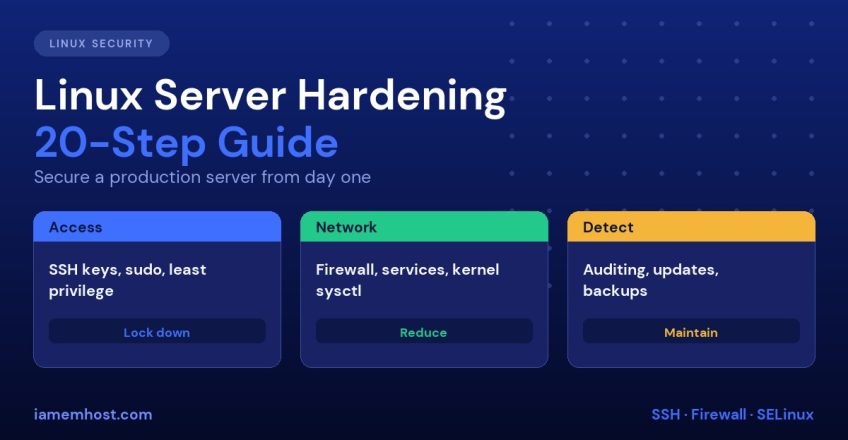

A freshly installed Linux server is not secure. It listens on more ports than you need, accepts password logins, installs software you will never use and keeps almost no audit trail. Within minutes of getting a public IP address it will be scanned and probed. Linux server hardening is the process of closing those gaps in a deliberate order so that an attacker finds as little as possible to work with. This guide gives you a 20-step checklist for AlmaLinux, Rocky, RHEL, Ubuntu and Debian servers. It is aimed at hosting and production use, and each step stands alone, so you can apply them gradually.
If you run Windows servers too, the same principles apply but the tools differ. We cover that side separately in the Windows Server hardening checklist and Windows RDP security guides. A short comparison appears near the end of this post.
Before You Start
- Take a snapshot or backup so you can roll back a mistake
- Keep a second SSH session open while you change SSH or firewall settings, so you cannot lock yourself out
- Work through a console (VNC or IPMI) if one is available
- Record every change, because undocumented hardening is hard to maintain
Part 1: Linux Server Hardening Starts with Patching
1. Apply all updates, then automate security updates
# AlmaLinux / Rocky / RHEL
dnf update -y
dnf install dnf-automatic -y
sed -i 's/^apply_updates.*/apply_updates = yes/' /etc/dnf/automatic.conf
systemctl enable --now dnf-automatic.timer

# Ubuntu / Debian
apt update && apt upgrade -y
apt install unattended-upgrades -y
dpkg-reconfigure -plow unattended-upgrades
Most real compromises use vulnerabilities that already have patches. Application runtimes such as PHP need attention too; the recent PHP2Shell vulnerabilities are a good example of why patching the language runtime matters as much as the operating system.
2. Remove software and services you do not use
ss -tulpn                         # what is listening
systemctl list-unit-files --state=enabled
rpm -qa | wc -l                   # or: dpkg -l | wc -l
Disable and remove anything unnecessary, such as telnet, rsh, cups, avahi-daemon or unused mail services. Each package is something that may need patching later.
3. Use only trusted repositories
Keep GPG checking on (gpgcheck=1), avoid adding random third-party repos and pin versions where stability matters.
Part 2: Access Control
4. Create a named admin user and stop using root directly
adduser admin1
usermod -aG wheel admin1        # Debian/Ubuntu: usermod -aG sudo admin1
5. Use SSH keys and disable password logins
Generate a key pair, copy the public key to the server, then edit /etc/ssh/sshd_config:
PermitRootLogin no
PasswordAuthentication no
PubkeyAuthentication yes
MaxAuthTries 3
LoginGraceTime 30
AllowUsers admin1
X11Forwarding no
Test with sshd -t, reload with systemctl reload sshd and confirm the key login works in a second session. The full procedure is in How to Set Up SSH Key Authentication. Moving SSH to another port only reduces log noise; see Change SSH Port on CentOS if you want to.
6. Require strong passwords and lock down sudo
Set a password policy with pam_pwquality (minlen = 14) and remove NOPASSWD from sudoers except for specific, well-understood automation. Review /etc/sudoers.d/ regularly.
7. Add two-factor authentication for administrators
Google Authenticator PAM, or hardware keys through pam_u2f, add a second factor to SSH and sudo. This neutralises stolen-key and password-reuse attacks.
8. Audit accounts
awk -F: '($3 == 0) {print $1}' /etc/passwd          # only root should be UID 0
awk -F: '($2 == "") {print $1}' /etc/shadow         # no empty passwords
lastlog | head
Lock unused accounts with usermod -L and remove people who have left.
Part 3: Network Security
9. Enable a default-deny firewall
# firewalld (RHEL family)
systemctl enable --now firewalld
firewall-cmd --permanent --add-service=ssh --add-service=http --add-service=https
firewall-cmd --reload

# ufw (Ubuntu)
ufw default deny incoming
ufw allow 22/tcp && ufw allow 80,443/tcp
ufw enable
Restrict SSH and any admin ports to known IP ranges where you can. On cPanel servers, see Install CSF Firewall.
10. Block brute-force attempts automatically
Install Fail2Ban or CrowdSec so repeated failures are banned. Our Fail2Ban guide covers SSH, web and mail jails.
11. Harden the kernel network stack with sysctl
Add the following to /etc/sysctl.d/99-hardening.conf and apply with sysctl --system:
net.ipv4.conf.all.rp_filter = 1
net.ipv4.conf.all.accept_redirects = 0
net.ipv4.conf.all.send_redirects = 0
net.ipv4.conf.all.accept_source_route = 0
net.ipv4.icmp_echo_ignore_broadcasts = 1
net.ipv4.tcp_syncookies = 1
net.ipv4.conf.all.log_martians = 1
kernel.randomize_va_space = 2
kernel.kptr_restrict = 2
kernel.dmesg_restrict = 1
fs.protected_hardlinks = 1
fs.protected_symlinks = 1
If you do not use IPv6, disable it deliberately rather than leaving it half-configured; see Disable IPv6 on RHEL and AlmaLinux.
12. Use encrypted protocols only
Use SFTP instead of FTP, enforce TLS on mail, and retire TLS 1.0 and 1.1. Automate certificates as in Let’s Encrypt SSL Auto-Renewal.
Part 4: System Hardening
13. Keep SELinux or AppArmor enabled
Disabling mandatory access control is the most common bad habit on Linux servers. Keep SELinux in enforcing mode and fix the policy rather than switching it off:
getenforce
ausearch -m avc -ts recent | audit2why
We have a guide on how to disable it, but for production it is almost always better to leave it on and write the exception.
14. Set secure file permissions
chmod 600 /etc/ssh/sshd_config
chmod 700 /root
find / -xdev -type f -perm -0002 -ls     # world-writable files
find / -xdev -perm -4000 -type f -ls     # SUID binaries to review
See Linux File Permissions and Ownership for the background.
15. Harden mount options
Mount /tmp, /var/tmp and /dev/shm with noexec,nosuid,nodev where the workload allows it. This stops many drive-by payloads from running out of world-writable directories.
16. Limit resource use
Set ulimit and systemd resource controls (MemoryMax, TasksMax) for services, so a runaway process cannot take the server down. The Linux OOM killer guide explains the failure mode.
Part 5: Detection and Recovery
17. Turn on auditing and central logging
Install auditd with rules for identity files, SSH and cron, and forward logs off the server. See Auditd and Log Monitoring on Linux.
18. Monitor file integrity and scan for malware
Run AIDE for integrity checks and ClamAV or Linux Malware Detect for web content. Free options are listed in our guide to free security tools for Windows and Linux.
19. Back up, off the server, and test restores
Keep at least one copy that an attacker with root on the server cannot delete. See How to Back Up a Linux Server.
20. Measure yourself with a benchmark
Run Lynis for a quick score, or OpenSCAP against the CIS benchmark for a detailed report:
lynis audit system
oscap xccdf eval --profile xccdf_org.ssgproject.content_profile_cis_server_l1 \
  --report /root/cis-report.html /usr/share/xml/scap/ssg/content/ssg-almalinux9-ds.xml
Fix findings in order of severity and re-run quarterly.
Linux and Windows Hardening Compared
| Area | Linux | Windows Server |
|---|---|---|
| Remote access | SSH keys, no root login | RDP with NLA, VPN or RD Gateway, MFA |
| Firewall | firewalld, ufw, nftables | Windows Defender Firewall |
| Mandatory access control | SELinux, AppArmor | Defender ASR rules, AppLocker |
| Updates | dnf-automatic, unattended-upgrades | Windows Update, WSUS |
| Brute-force defence | Fail2Ban, CrowdSec | Account lockout, IPBan |
| Auditing | auditd, journald | Advanced Audit Policy, Sysmon |
| Baseline | CIS Benchmark, Lynis | CIS Benchmark, Microsoft Security Baselines |
Hardening Checklist Summary
- Patch and automate updates
- Remove unused software
- Trusted repositories only
- Named admin users
- SSH keys, no passwords, no root login
- Strong passwords and sudo discipline
- Two-factor for admins
- Audit accounts
- Default-deny firewall
- Fail2Ban or CrowdSec
- Kernel sysctl hardening
- Encrypted protocols
- SELinux or AppArmor enforcing
- Correct permissions and SUID review
- Restrictive mount options
- Resource limits
- Auditing and remote logs
- Integrity checks and malware scanning
- Off-server backups
- Benchmark and repeat
Prefer to have this done for you? Our managed server services include hardening, patching and monitoring.
Frequently Asked Questions
What is the first thing to do on a new Linux server?
Update the system, create a non-root admin user with an SSH key, disable password and root SSH logins, and enable a default-deny firewall.
Is changing the SSH port worth it?
It reduces automated log noise but is not real security. Key-only authentication, a firewall and Fail2Ban matter far more.
Should I disable SELinux?
No. Keep it in enforcing mode and adjust the policy for legitimate exceptions. It limits the damage if an application is compromised.
How often should I review server hardening?
Review quarterly and after every major change. Re-run a benchmark such as Lynis or OpenSCAP and compare scores over time.