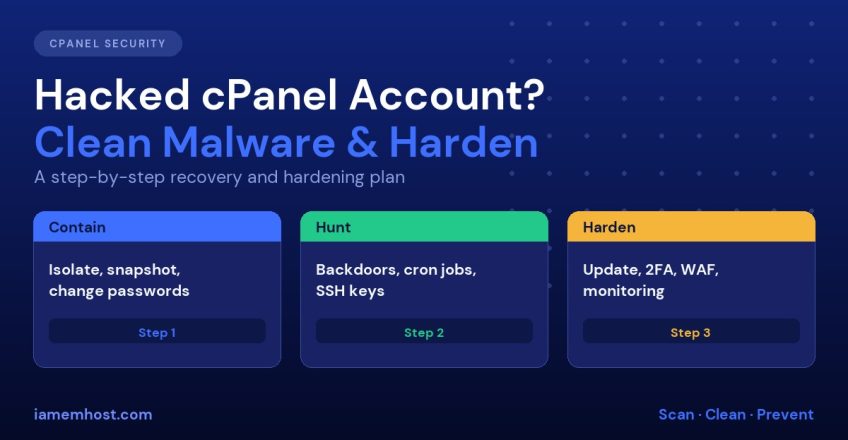

Finding a defaced homepage, a Google “This site may be hacked” warning or a suspension notice for sending spam is a bad moment, and the instinct is to delete the infected file and move on. That almost never works. Attackers who compromise a cPanel account nearly always leave several ways back in: a hidden PHP backdoor, a malicious cron job, an extra SSH key or a rogue admin user. Clean only the visible symptom and the site is reinfected within hours. This guide gives you a methodical process to contain, clean and harden a hacked cPanel account.
Signs Your cPanel Account Has Been Compromised
- Unfamiliar files or recently modified PHP files you did not change
- Redirects to spam or pharma sites, usually only for visitors arriving from Google or on mobile
- Sudden traffic or CPU spikes, or “508” errors (see Fix 508 Resource Limit Reached)
- Outbound spam: your mail queue is full or your IP appears on a blacklist
- Browser or Google Search Console security warnings
- New WordPress administrators, or password-reset emails you did not request
Step 1: Contain a Hacked cPanel Account
- Take the site offline or into maintenance mode, or block public access with
.htaccess, so visitors are not served malware while you work. - Take a full backup of the infected account first. You need it for forensics and in case you delete something needed. Label it “infected”.
- Change every credential immediately: cPanel password, FTP and SSH accounts, database passwords, WordPress admin passwords, email accounts and API tokens. Do this from a clean computer, because a keylogger may be how the account was taken.
- Log out all sessions. In WordPress, change the salts in
wp-config.php, which invalidates every login cookie.
Step 2: Scan and Identify Infected Files
If your host runs Imunify360 or ImunifyAV you can scan directly from cPanel (see Imunify360 free with IAMEM Hosting). Otherwise ClamAV or Linux Malware Detect (Maldet) work from SSH:
# Linux Malware Detect
maldet -a /home/username/public_html

# ClamAV
clamscan -ri --exclude-dir=mail /home/username/public_html
Scanners miss custom obfuscated code, so back them up with manual checks.
Find recently changed files
# PHP files modified in the last 7 days
find ~/public_html -type f -name "*.php" -mtime -7 -ls

# PHP files hiding in uploads (there should be none)
find ~/public_html/wp-content/uploads -type f -name "*.php"
Search for common malicious patterns
grep -rIlE "eval\(base64_decode|gzinflate\(base64|str_rot13\(|FilesMan|c99shell|r57shell" ~/public_html --include=*.phpTreat every match as suspicious, but verify before deleting: a few legitimate plugins use base64_decode. Look at the file path, owner and modified date.
Compare against clean copies
For WordPress, WP-CLI can verify core and plugin files against the official checksums:
wp core verify-checksums
wp plugin verify-checksums --all
Any “File doesn’t verify” result for core means tampering. Replace core with a fresh download: wp core download --force --skip-content.
Step 3: Hunt for Persistence
This is the step that separates a real cleanup from a temporary one.
| Where to look | Command or location | What to check |
|---|---|---|
| Cron jobs | crontab -l or cPanel » Cron Jobs | Entries you did not create, especially wget/curl piping to sh |
| SSH keys | ~/.ssh/authorized_keys | Unknown public keys |
| WordPress users | wp user list --role=administrator | Rogue admin accounts |
.htaccess files | find ~/public_html -name .htaccess | Redirect rules, auto_prepend_file directives |
| Config overrides | .user.ini, php.ini | auto_prepend_file or auto_append_file loading malware |
| Mu-plugins and drop-ins | wp-content/mu-plugins/, wp-content/*.php | Files you do not recognise |
| Databases | wp_options, wp_posts | Injected <script> or <iframe> tags |
| Other sites | Addon and subdomain directories | Neglected installs are the usual entry point |
An important detail: cPanel accounts are a single trust domain. If one abandoned WordPress install under an addon domain was the entry point, the attacker can write to every other site in the account. Scan all of them, and delete anything you no longer use.
Step 4: Clean and Restore
You have two options.
- Restore from a known-clean backup, dated before the infection began. This is the safest route. Then immediately apply all updates before going live, otherwise the same vulnerability will be exploited again.
- Clean in place. Reinstall WordPress core, reinstall every plugin and theme fresh from official sources (never reuse the copies on the server), remove unrecognised files, and clean the database.
Never “restore” a backup without checking when the compromise started. Backups taken after the infection simply restore the malware.
Step 5: Find How They Got In
If you skip this, the cleanup is pointless. Check the access logs around the first modified file’s timestamp:
# Requests to a suspicious file
grep "shell.php" ~/access-logs/* | head

# POST requests to PHP files in uploads
grep "POST" ~/access-logs/* | grep "/wp-content/uploads/" | grep ".php"
The usual causes are an outdated plugin or theme with a known vulnerability, a nulled (pirated) theme, weak or reused passwords, and exposed wp-config.php backups. Update or remove the vulnerable component.
Step 6: Harden the Account
- Update WordPress core, plugins, themes and PHP to a supported version
- Enable two-factor authentication on cPanel and on WordPress admin
- Set correct permissions: directories 755, files 644,
wp-config.php600 (see Linux file permissions explained) - Disable PHP execution in
uploadswith an.htaccessrule - Restrict dangerous PHP functions: Secure your CMS by disabling dangerous PHP functions
- Enable a WAF: ModSecurity on cPanel or Cloudflare
- Follow the WordPress Security Checklist 2026
- Schedule daily off-server backups
Block PHP execution in uploads by adding this to wp-content/uploads/.htaccess:
<FilesMatch "\.(php|phtml|php5|phar)$">
    Require all denied
</FilesMatch>
Step 7: Request Review and Monitor
If Google flagged your site, fix it first, then request a review in Search Console » Security Issues. If your IP was blacklisted for spam, see our guide to getting delisted from Spamhaus and Barracuda. Watch logs and file-change reports for at least two weeks after cleanup.
Frequently Asked Questions
Can I just delete the infected files?
Rarely. Malware usually exists in many places, including the database, cron jobs and other sites in the same account. Deleting visible files without finding the entry point and persistence mechanisms leads to reinfection.
How long does cPanel malware cleanup take?
A single small WordPress site can be cleaned in a few hours. Accounts with many addon sites or a long dwell time can take a day or more, plus the monitoring period afterwards.
Should I rebuild the server?
Only if you suspect root-level compromise. On shared hosting, a compromised user account does not normally affect the server, but VPS owners with exposed root or SSH credentials should treat the whole server as compromised.
Will a free malware plugin protect me?
Plugins help detect changes but cannot fully protect you if the attacker already has file access. Combine server-level scanning, patching, strong authentication and backups.