

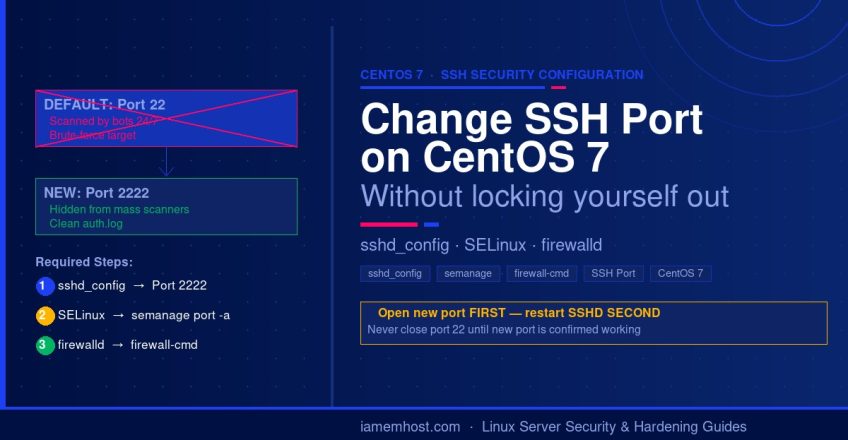

SSH port 22 is the most aggressively scanned port on the internet — automated bots attempt brute-force logins around the clock. Changing the SSH port from the default 22 to a non-standard port does not make your server more secure on its own, but it dramatically reduces automated attack noise and keeps your auth logs clean. On CentOS 7 and RHEL 7, the process involves three components: sshd_config, SELinux policy, and firewalld — all three must be updated or the port change will fail.
Before You Start — Avoid Locking Yourself Out
⚠️ Critical: Do not close your current SSH session until you have verified the new port is working. If you restart SSHD without first opening the new port in your firewall, you will lose all remote access. Always open the new port first, restart SSHD second, then close port 22 last.
Step 1: Update sshd_config
Open the SSH daemon configuration file and add or uncomment the Port directive. Replace 2222 with your chosen port (recommended: pick a number between 1024–65535 that is not used by another service):
vi /etc/ssh/sshd_configFind the line #Port 22 and change it to your desired port. To run both ports temporarily during transition (recommended), add a second Port line:
# Keep port 22 temporarily until the new port is confirmed working
Port 22
Port 2222
Once you have confirmed the new port works, come back and remove the Port 22 line.
Step 2: Update the SELinux Policy for the New Port
On CentOS 7 / RHEL 7, SELinux restricts sshd to port 22 by default. If you restart SSHD without updating the SELinux policy first, the service will fail to bind to the new port. Use semanage to add the new port to the ssh_port_t context:
# Install policycoreutils-python if semanage is not available
yum install -y policycoreutils-python

# Add the new port to SELinux ssh context
semanage port -a -t ssh_port_t -p tcp 2222
Verify the policy was applied successfully:
semanage port -l | grep ssh
# Expected output:
# ssh_port_t    tcp    2222, 22
Step 3: Open the New Port in firewalld
CentOS 7 uses firewalld by default — not iptables directly. Use firewall-cmd to open the new SSH port permanently:
# Add the new SSH port permanently
firewall-cmd --permanent --add-port=2222/tcp

# Reload firewalld to apply the rule
firewall-cmd --reload

# Verify the port is now open
firewall-cmd --list-ports
Note: The original iptables -A INPUT command does not work correctly on CentOS 7 when firewalld is running — firewalld manages iptables internally and direct iptables edits are overwritten on reload. Always use firewall-cmd on CentOS 7.
Step 4: Restart the SSH Service
Restart SSHD to apply the configuration change. On CentOS 7, use systemctl rather than the legacy service command:
systemctl restart sshd

# Verify SSHD is listening on the new port
ss -tlnp | grep sshd
# or
netstat -tlnp | grep sshd
You should see sshd listening on both port 22 and 2222 (if you kept both in sshd_config).
Step 5: Test the New Port and Remove Port 22
Without closing your current session, open a new terminal and test connecting on the new port:
ssh -p 2222 user@your-server-ipOnce confirmed working, go back to /etc/ssh/sshd_config and remove the Port 22 line. Then remove port 22 from firewalld and restart SSHD:
# Remove port 22 from firewalld
firewall-cmd --permanent --remove-service=ssh
firewall-cmd --permanent --remove-port=22/tcp
firewall-cmd --reload

# Restart SSHD with only the new port
systemctl restart sshd
Troubleshooting
| Problem | Likely Cause | Fix |
|---|---|---|
| SSHD fails to start | SELinux blocking new port | Run semanage port -a -t ssh_port_t -p tcp 2222 |
| Connection refused on new port | Firewall not updated | Run firewall-cmd --permanent --add-port=2222/tcp && firewall-cmd --reload |
| semanage command not found | Package not installed | Run yum install -y policycoreutils-python |
| Port change lost after reboot | Used iptables instead of firewall-cmd | Use firewall-cmd --permanent flags |