
Most cPanel outages are not mysterious. They come from a full disk nobody noticed, a failed backup nobody checked, a package update that was postponed for six months or a mail queue that quietly grew to 200,000 messages. A little routine prevents nearly all of it. This cPanel server maintenance checklist splits the work into daily, weekly, monthly and quarterly tasks, with the WHM menu paths and commands for each, so you can run a reliable server without constant firefighting.
Before You Start: Set Up the Foundations
- Contact email and alerts: In WHM go to Server Configuration » Basic WebHost Manager Setup and make sure the contact address is monitored. In Server Configuration » Tweak Settings and Contact Manager, enable notifications for disk, service failures, backups and updates.
- Monitoring: Use WHM Service Manager (chkservd) at minimum, plus an external uptime monitor that checks the site from outside your network.
- Documentation: Keep a note of server role, IPs, license, nameserver and backup destinations.
Daily cPanel Server Maintenance Tasks (5 Minutes)
| Task | Where or command | Why |
|---|---|---|
| Review alert emails | Mailbox for the WHM contact | Early warning on failures |
| Check services are up | WHM » Service Status | Apache, Exim, MySQL, named, SSH |
| Check disk usage | df -h and df -i | A full disk breaks mail, databases and backups |
| Check the mail queue | exim -bpc | A large queue signals spam or a stuck relay |
| Check the load | uptime, WHM » Server Status | Spot runaway accounts |
| Review last night’s backup | Backup Status | Confirm it completed |
A quick morning health check script:
#!/bin/bash
echo "== Load =="; uptime
echo "== Disk ==" ; df -h | awk '$5+0>80'
echo "== Inodes =="; df -i | awk '$5+0>80'
echo "== Mail queue =="; exim -bpc
echo "== Failed services =="; systemctl --failed --no-legend
If the queue is high, see How to Clear the Exim Mail Queue. If disk is high, follow the cPanel disk full and inode limit guide.
Weekly Tasks (30 Minutes)
1. Update cPanel and the operating system
cPanel updates run automatically through upcp, but confirm it. In WHM » Server Configuration » Update Preferences, choose a release tier (STABLE or RELEASE for production) and make sure automatic updates are enabled. Then update system packages:
/scripts/upcp --force      # only if updates have not been applying
dnf update -y              # AlmaLinux / Rocky; use yum on older systems
needs-restarting -r        # reports whether a reboot is required
Schedule kernel reboots in a maintenance window. Use KernelCare or live patching if downtime is not acceptable.
2. Verify backups, not just that they ran
Check WHM » Backup Configuration is enabled and writing to a remote destination (not the same disk). Confirm the latest archive for a handful of accounts exists and has a realistic size:
ls -lh /backup/$(date +%F)/accounts/ | headFor a deeper look at strategy, see How to Back Up a Linux Server.
3. Review security reports
- WHM » Security Center » Security Advisor: resolves outstanding warnings
- Security Center » ModSecurity: check that rule sets are updating, see our ModSecurity guide
- cPHulk Brute Force Protection and CSF/LFD logs for blocked IPs: Install CSF on cPanel
- Imunify360 or ImunifyAV infection reports
4. Check resource-heavy accounts
# Top accounts by memory/CPU right now
/scripts/dcpumonview            # CPU usage history by account
ps -eo user,%cpu,%mem --sort=-%cpu | head
If accounts keep hitting limits, review LVE settings: Fix 508 Resource Limit Reached.
Monthly Tasks (2 Hours)
| Task | Details |
|---|---|
| EasyApache and PHP review | Check WHM » EasyApache 4 for available updates; remove EOL PHP versions after notifying customers; confirm each account uses a supported PHP version |
| Test a restore | Restore one account to a temporary username and verify the site and database work |
| Account audit | Suspend or terminate inactive accounts: WHM » List Accounts; check for unexpected resellers |
| SSL review | Manage AutoSSL, confirm renewals; see Let’s Encrypt auto-renewal |
| Logs and rotation | Verify logrotate works; check /var/log and /usr/local/apache/logs sizes |
| Mail health | Check blacklist status of server IPs, reverse DNS and SPF/DKIM; see SPF, DKIM and DMARC setup |
| Database health | mysqlcheck --all-databases --check; review slow queries; see MySQL and MariaDB performance tuning |
| User security | Rotate root and reseller passwords; remove unused SSH keys; confirm 2FA enabled in Security Center » Two-Factor Authentication |
| Capacity check | Review growth in disk, RAM and bandwidth; plan upgrades before they become urgent |
Quarterly and Annual Tasks
- Full disaster-recovery drill: restore the whole server (or a VM snapshot) onto spare hardware or a test VM and time it
- Review firewall rules and close ports that are no longer needed; ensure SSH is key-only (SSH Key Authentication)
- OS upgrade planning: check the end-of-life date of your OS and cPanel version. cPanel only supports specific OS versions, so unsupported systems stop receiving updates
- License and certificate expiry: cPanel license, server hostname certificate, domain registrations
- Documentation review: update the runbook, contacts and recovery procedures
- Security audit: an external vulnerability scan and a review of access logs and privileged accounts
Automate What You Can
Reduce the manual part with the WHM API and scheduled jobs, which is covered in Automating cPanel with whmapi1 and UAPI and Cron Jobs Explained. Good candidates for automation are the daily health report, backup verification, disk alerts and certificate checks.
Common Mistakes to Avoid
- Backups to the same disk. A disk failure then destroys the server and its backups together.
- Never testing restores. An untested backup is a hope, not a plan.
- Postponing updates for months. Large jumps are riskier than small regular ones.
- Ignoring alert emails. If nobody reads them, they are not monitoring.
- Overselling resources. Capacity planning prevents the “everything is slow” tickets.
- Editing configs by hand without a note. Use WHM or documented templates and keep changes recorded.
Maintenance Calendar Summary
| Frequency | Key tasks |
|---|---|
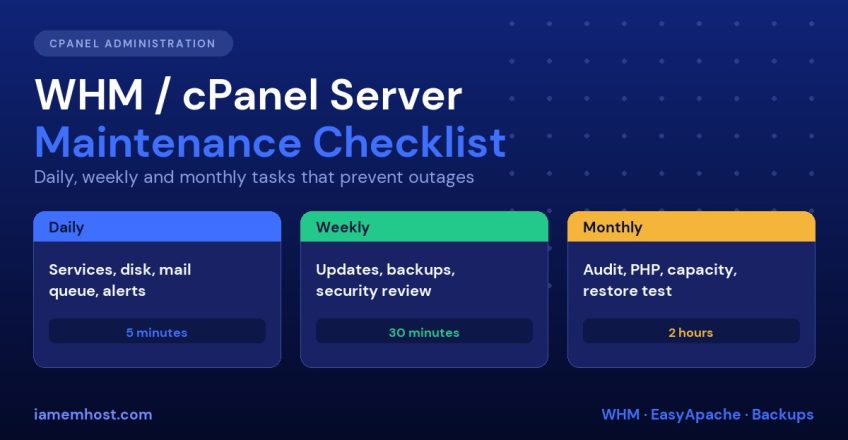
| Daily | Alerts, services, disk, mail queue, backup status |
| Weekly | Updates, backup verification, security review, heavy-account review |
| Monthly | EasyApache and PHP, restore test, SSL, account and database audit |
| Quarterly | DR drill, firewall review, OS lifecycle, security scan |
Not able to dedicate the time? Our managed server services cover monitoring, patching, backups and security on your behalf.
Frequently Asked Questions
How often should a cPanel server be updated?
cPanel applies updates automatically, nightly by default. Update the operating system packages at least weekly, and apply kernel updates in a planned reboot window.
What are the most important WHM settings to review regularly?
Backup configuration, update preferences, Security Advisor, service status and Tweak Settings. These control reliability and security more than anything else.
How do I test that my cPanel backups work?
Restore an account to a temporary username through WHM » Backup Restoration or /scripts/restorepkg, then verify the files, database and email. Do it monthly.
Is it safe to run /scripts/upcp manually?
Yes. It is the same process cPanel runs nightly. Avoid running it twice at once, and check /var/cpanel/updatelogs/ for results.

cPanel Inode Limit Reached or Disk Full? How to Fix It
Iamem HostingAuditd on Linux: Detect Intrusions and File Tampering
Iamem Hosting