

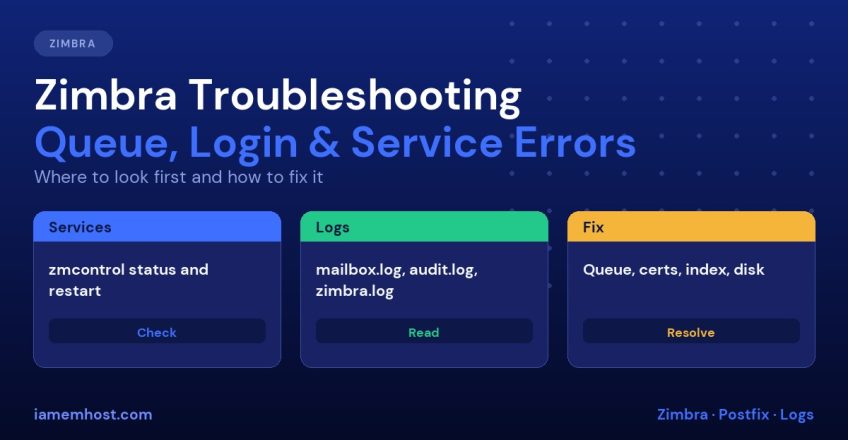

Zimbra is a large system made of many cooperating services: a mailbox server, LDAP, an MTA (Postfix), an anti-spam and anti-virus chain, a proxy and more. When something breaks, the symptom (users cannot log in, mail is stuck, the web client is slow) is rarely the cause. This Zimbra troubleshooting guide gives you a repeatable order of checks and fixes for the problems administrators meet most often.
Zimbra’s own documentation (the Zimbra 10 admin guide) is the reference for your version, and some of the standard command-line utilities below are not fully documented there, so test commands on a non-production server first. Run Zimbra commands as the zimbra user (su - zimbra) unless stated.
Know Your Version and Support Status First
Before chasing symptoms, check what you are running:
su - zimbra
zmcontrol -v
According to Zimbra’s lifecycle page (checked November 2026), the current line is Zimbra Daffodil 10.1, with general support until 31 December 2027. Version 10.0 and 9.0 are out of support and no longer receive new releases, bug fixes or security patches. A 10.1 licence key is required to run Daffodil. If you are on an unsupported version, many “mystery” problems are known issues that were fixed in later patches, so planning an upgrade is part of troubleshooting. The security side is in Zimbra Security Hardening and Patching.
Step 1: Check That Services Are Running
su - zimbra
zmcontrol status
Every service should show Running. A stopped service names the problem area: ldap (directory, so nobody can log in), mailbox (web client, IMAP), mta (mail flow), proxy, antivirus, antispam and so on. Restart everything with:
zmcontrol restartIndividual restarts are also available, such as zmmailboxdctl restart, zmproxyctl restart and zmconfigdctl restart. A single service that will not stay up almost always has a clear error in its log, as described next. Also check the licence service: zmlicensectl --service status. An expired or missing licence on a Daffodil server stops the mailbox from working properly.
Step 2: Read the Right Log
| Problem | Log | Location |
|---|---|---|
| Web client, IMAP, mailbox errors | mailbox.log | /opt/zimbra/log/mailbox.log |
| Login failures and admin changes | audit.log | /opt/zimbra/log/audit.log |
| Postfix, amavis, ClamAV, SASL, LDAP | zimbra.log (syslog) | /var/log/zimbra.log |
| Antivirus updates | freshclam.log, clamd.log | /opt/zimbra/log/ |
| Slow database queries | myslow.log | /opt/zimbra/log/ |
| Web server (Jetty) | Jetty logs | /opt/zimbra/jetty/logs/ |
| Database errors | <hostname>.err | /opt/zimbra/db/data/ |
Useful commands:
tail -f /opt/zimbra/log/mailbox.log
grep -i "error\|exception" /opt/zimbra/log/mailbox.log | tail -50
grep -i "authentication failed" /opt/zimbra/log/audit.log | tail -20
tail -100 /var/log/zimbra.log
audit.log records authentication activity, including login failures, which shows whether a user typed the wrong password or an attacker is guessing.
Step 3: Fix Mail Queue Problems
Symptoms: delayed or missing mail, bounces, a growing queue. In the Admin Console, go to Home » Monitor » Mail Queues. The queues are:
| Queue | Meaning |
|---|---|
| Incoming | Messages just received |
| Active | Being delivered now |
| Deferred | Delivery failed temporarily and will retry |
| Held | Held by an administrator |
| Corrupt | Damaged queue files |
The toolbar lets you Hold, Release, Requeue and Delete messages, and Flush to retry deliveries. Zimbra uses Postfix underneath, so the standard Postfix tools also work from a shell:
/opt/zimbra/common/sbin/postqueue -p | tail -5       # queue summary
/opt/zimbra/common/sbin/postqueue -f                  # flush the queue
/opt/zimbra/common/sbin/postsuper -d ALL deferred     # delete all deferred mail (use with care)
Read the reason attached to deferred messages in /var/log/zimbra.log. Common causes and fixes:
- Recipient server rejects you: your IP is on a blacklist or lacks reverse DNS. See How to get delisted from Spamhaus and Barracuda and Reverse DNS (PTR) records
- Connection timeouts: outbound port 25 blocked or DNS resolver problems. Test with
nc -vz mail.recipient.com 25anddig - Spam flood from a compromised account: find the sender in the queue, lock the account, change its password, then delete the queued spam. Check
audit.logfor how the account was accessed - Disk full: Postfix stops accepting mail. See step 6
Bounces that are stuck stay for a limited time. The bounce queue lifetime is configurable with zmlocalconfig -e bounce_queue_lifetime=<days> (the default is 5 days). For other Exim and Postfix queue guidance, see How to Clear the Exim Mail Queue, whose ideas carry over.
Step 4: Fix Login and Authentication Errors
| Symptom | Likely cause |
|---|---|
| “Authentication failed” for one user | Wrong password, or the account is locked out after too many failures. Check the account status in the Admin Console and in audit.log |
| Nobody can log in | LDAP or mailbox service is down. Run zmcontrol status |
| Admin Console login fails | Check the zimbraAdmin application, port 7071, and the certificate |
| IMAP clients fail but webmail works | IMAP service or SSL setting issue; look at mailbox.log. Plain-text authentication might be blocked: Zimbra: enable plain text authentication for IMAP and POP3 |
| Users get locked repeatedly | Failed-login lockout policy in effect (see below), or a mobile device with an old password |
Zimbra has a failed login lockout policy under Class of Service » Advanced. According to the admin guide the defaults are 10 consecutive failures, a one-hour lockout and a one-hour failure window. The account status shows as locked out automatically, and a mobile phone or desktop app retrying with a stale password is a very common cause. Ask the user to update the saved password everywhere. Zimbra can also email you when failures spike; see Enable Zimbra brute-force login notifications with zmauditswatch.
Step 5: Fix Certificate Errors
Browsers or mail clients showing certificate warnings, or services failing after an expiry, are a classic cause of “it stopped working overnight”. Zimbra sends a monthly report on the first of the month listing certificates that expire within 30 days, so do not ignore that email. To see what is deployed, use the certificate manager:
su - zimbra
zmcertmgr viewdeployedcrt
You can also manage certificates in the Admin Console under Certificates. After installing a new certificate, restart services, because the documentation notes a server restart is required. Check expiry dates regularly. For a free certificate and automation ideas see Let’s Encrypt SSL auto-renewal on Linux, and if you want to serve both web protocols see How to run Zimbra on both HTTP and HTTPS.
Step 6: Fix Disk Space Problems
A full disk is the most frequent root cause of strange Zimbra behaviour: services crash, Postfix refuses mail and the database corrupts. Check:
df -h
df -i
du -sh /opt/zimbra/* | sort -h | tail
Zimbra warns when disk usage passes 85 percent (warning) and 95 percent (critical), and zmcontrol warns before starting services if a threshold is exceeded. The thresholds are controlled by local configuration keys zmdisklog_warn_threshold and zmdisklog_critical_threshold. Typical space users are the mail store (/opt/zimbra/store), the index, logs and the Postfix queue. Fixes:
- Delete old logs and rotate them properly
- Remove inactive mailboxes after backing them up
- Set quotas for all accounts
- Move the store to a larger volume
- Clean the queue of spam
Use our general guide to disk space management on Linux to find what is using space.
Step 7: Repair a Corrupt Mailbox Index
If search results are missing or wrong, or mailbox.log shows a warning that begins “Possibly corrupt index”, verify and rebuild the index for the mailbox:
su - zimbra
zmprov verifyIndex user@example.com
zmprov reIndexMailbox user@example.com start
Reindexing can take a long time and uses CPU on large mailboxes, so run it outside business hours. A failed verification status means repair is needed. Note that text searches do not always fail visibly when an index is corrupt, so check the log.
Step 8: Slow Webmail and High Load
- Check memory with
free -mand look for the Linux killer indmesg: Linux OOM killer troubleshooting. Zimbra needs generous RAM, and an under-provisioned server fails in odd ways - Look at
myslow.logfor slow database queries - Check whether a bulk operation, a reindex or antivirus scan is running
- Review Jetty logs and the HTTP request throttle. Zimbra’s DoS filter limits requests per second (default 30 per client) and may block busy automation. Trusted IPs can be added to
zimbraHttpThrottleSafeIPs - Check the hardware or VM storage speed, since slow disks hurt mail servers badly
A Quick Zimbra Troubleshooting Checklist
zmcontrol -vand support statuszmcontrol statusandzmlicensectl --service statusdf -h,df -iandfree -m- The relevant log, from the table above
- The mail queue and its reasons
- Certificates and DNS (MX, PTR, SPF, DKIM)
- Only then restart services, and record what you changed
Known Issue Worth Knowing
Zimbra’s product advisory of March 2026 describes a defect (ZBUG-5265) affecting versions 10.1.15 and 10.1.16 with external object storage such as S3: running zmpurgeoldmbox after a mailbox move could delete blobs, with a fix expected in 10.1.17. If you use external storage, check the advisory and do not run that command after migrations on affected versions. Keep your server on the latest patch release.
Frequently Asked Questions
How do I check whether all Zimbra services are running?
Run zmcontrol status as the zimbra user. Every service should show Running.
Where are the Zimbra logs?
The main ones are /opt/zimbra/log/mailbox.log, /opt/zimbra/log/audit.log and /var/log/zimbra.log.
How do I flush the Zimbra mail queue?
Use the Admin Console (Monitor » Mail Queues » Flush) or postqueue -f from the Postfix tools under /opt/zimbra/common/sbin.
Why can no one log in to Zimbra?
Most often LDAP or the mailbox service is stopped, the disk is full, or a licence or certificate has expired. Check zmcontrol status, df -h and the logs.
How do I rebuild a mailbox search index?
Run zmprov verifyIndex user@example.com and, if needed, zmprov reIndexMailbox user@example.com start.