
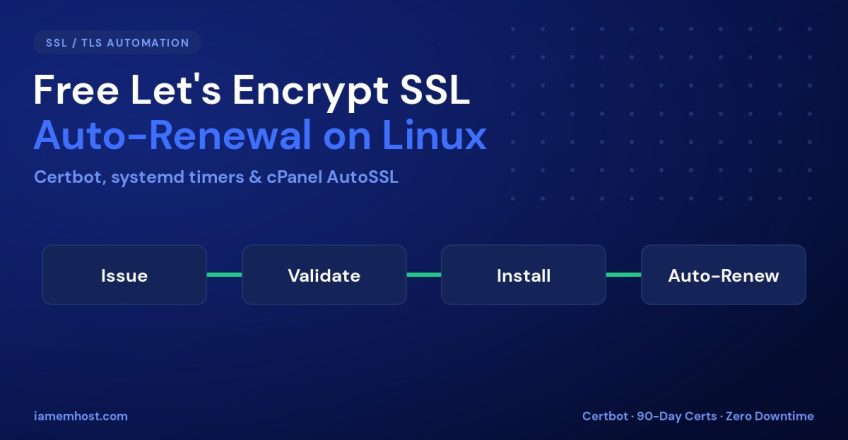

An SSL certificate that expires without warning is one of the fastest ways to break a website — browsers throw a full-page security warning, forms stop submitting, and APIs reject the connection. Let’s Encrypt issues free, trusted certificates, but they are only valid for 90 days. The trick to never thinking about SSL again is automatic renewal. This guide shows you how to install a Let’s Encrypt certificate with Certbot, set up hands-off auto-renewal on any Linux server, enable AutoSSL on cPanel, and fix the renewal failures that catch most people out.
Why 90-Day Certificates Are Actually a Good Thing
Short lifetimes force automation. A certificate that auto-renews every 60 days is far safer than a one-year certificate someone forgets to replace. It also limits the damage window if a private key is ever compromised. The only requirement is that renewal must be reliable — which is exactly what we set up below.
Method 1: Certbot on a Standalone Linux Server (Nginx/Apache)
Certbot is the official Let’s Encrypt client. Install it from your distribution’s repository or via snap (recommended, as it stays current automatically).
# Debian / Ubuntu
sudo apt update && sudo apt install certbot python3-certbot-nginx

# RHEL / AlmaLinux / Rocky
sudo dnf install certbot python3-certbot-nginx

# Snap (any distro, always latest)
sudo snap install --classic certbot
sudo ln -s /snap/bin/certbot /usr/bin/certbot
Issue and install a certificate in one command. Certbot edits your web server config automatically:
# Nginx
sudo certbot --nginx -d example.com -d www.example.com

# Apache
sudo certbot --apache -d example.com -d www.example.com
Setting Up Automatic Renewal
Modern Certbot installs a systemd timer (or cron job) automatically. Confirm it is active and test that renewal works before you rely on it:
# Check the timer is enabled
systemctl list-timers | grep certbot

# Dry-run a renewal (no certificate is actually replaced)
sudo certbot renew --dry-run
If the dry run reports success, you are done. If your system has no timer, add a cron job that runs twice a day — Certbot only renews certificates within 30 days of expiry, so running often is safe:
# crontab -e
0 */12 * * * /usr/bin/certbot renew --quiet --post-hook "systemctl reload nginx"
The --post-hook reloads your web server only when a certificate actually changes, so the new key takes effect without a manual restart.
Method 2: AutoSSL on cPanel/WHM
If you run cPanel, you don’t need Certbot at all — AutoSSL handles issuance and renewal for every domain on the server. To make sure it uses Let’s Encrypt:
- In WHM, go to SSL/TLS » Manage AutoSSL.
- Under the Providers tab, select Let’s Encrypt and agree to the terms.
- On the Manage Users tab, ensure AutoSSL is enabled for the accounts you want covered.
- Click Run AutoSSL For All Users to issue immediately.
AutoSSL then re-checks daily and renews any certificate nearing expiry — no cron job required.
Fixing Common Renewal Failures
| Symptom | Likely Cause | Fix |
|---|---|---|
| Challenge failed / 404 | HTTP-01 file not reachable | Ensure /.well-known/acme-challenge/ isn’t blocked by a redirect or firewall |
| Renewal silently stops | Cron/timer not running | systemctl enable --now certbot.timer |
| Rate-limit error | Too many issuances | Wait; Let’s Encrypt allows 5 duplicate certs/week |
| Cert renews but site still old | Web server not reloaded | Add a --post-hook reload |
| DNS validation fails | Wrong/missing TXT record | Verify the _acme-challenge TXT record propagated |
Bonus: Get Notified Before Anything Breaks
Always register with a real email so Let’s Encrypt can warn you 20 days before expiry if renewal hasn’t happened. You can also add a quick monitoring check:
# Show certificate expiry date for any domain
echo | openssl s_client -servername example.com -connect example.com:443 2>/dev/null \
  | openssl x509 -noout -dates
Conclusion
Free SSL is only useful if it never lapses. Whether you use Certbot’s systemd timer on a VPS or AutoSSL on cPanel, the goal is the same: issue once, verify the renewal works with a dry run, and let automation handle the rest. Set it up properly and you’ll never see an expired-certificate warning on your site again.