
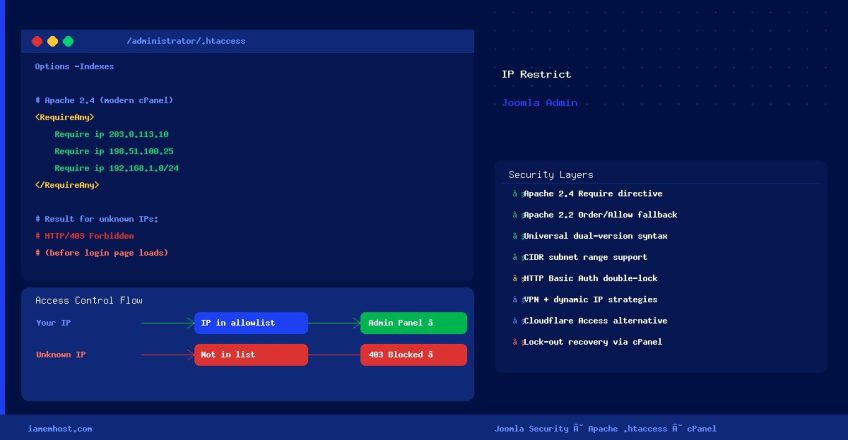

Restricting the Joomla administrator panel (/administrator/) to specific IP addresses is one of the most effective ways to prevent brute-force attacks and unauthorised access. Anyone not on the allowlist gets a 403 Forbidden response before they even see the login form. This guide covers the Apache 2.4 method (used on all modern cPanel servers), IP range notation, and how to add a second layer of HTTP authentication.
Step 1 — Create or Edit .htaccess in the Administrator Directory
The restriction must be placed in the .htaccess file inside Joomla’s administrator subdirectory only — not the root .htaccess. The file path is:
/home/username/public_html/administrator/.htaccessYou can create or edit this file via cPanel → File Manager, SSH, or an FTP client. If the file doesn’t exist yet, create it.
Step 2 — Add the IP Restriction Rules
Apache 2.4 Syntax (Modern cPanel — Recommended)
All cPanel servers running Apache 2.4 (EasyApache 4) use the Require directive:
Options -Indexes

    Require ip 203.0.113.10
    Require ip 198.51.100.25
    Require ip 192.168.1.0/24
Replace the example IPs with your own. The /24 notation allows an entire subnet (e.g., all addresses from 192.168.1.0 to 192.168.1.255).
Apache 2.2 Syntax (Legacy — Older Servers)
If your server still runs Apache 2.2 (uncommon on modern cPanel), use:
Options -Indexes
Order Deny,Allow
Deny from all
Allow from 203.0.113.10
Allow from 198.51.100.25
Allow from 192.168.1.0/24
Universal Syntax (Works on Both Apache 2.2 and 2.4)
If you are unsure which Apache version your server runs, this block handles both automatically:
Options -Indexes

    # Apache 2.4+

        Require ip 203.0.113.10
        Require ip 198.51.100.25
        Require ip 192.168.1.0/24


    # Apache 2.2
    Order Deny,Allow
    Deny from all
    Allow from 203.0.113.10
    Allow from 198.51.100.25
    Allow from 192.168.1.0/24
Step 3 — Find Your Current Public IP
Before saving the file, make sure you add your own IP. You can find it by running this from your local machine or checking a service like whatismyipaddress.com:
# From your local Linux/macOS terminal
curl -s https://ifconfig.me
Optional: Add HTTP Basic Authentication (Double Lock)
For maximum security, combine IP restriction with a username/password prompt using HTTP Basic Auth. Even if an attacker somehow bypasses the IP check, they still need the password:
# Step 1: Create the password file (run via SSH)
htpasswd -c /home/username/.htpasswds/joomla-admin adminuser
# Enter and confirm password when prompted

# Step 2: Add to administrator/.htaccess
Options -Indexes
AuthType Basic
AuthName "Restricted Area"
AuthUserFile /home/username/.htpasswds/joomla-admin
Require valid-user


        Require valid-user

            Require ip 203.0.113.10
            Require ip 192.168.1.0/24
What to Do If You Lock Yourself Out
If you accidentally block your own IP and can no longer access the admin panel:
- Log in to cPanel → File Manager
- Navigate to
public_html/administrator/ - Enable Show Hidden Files (Settings → Show Hidden Files)
- Edit or delete the
.htaccessfile to remove the restriction temporarily - Update the file with your correct IP, then re-apply
Handling Dynamic IPs
If your ISP assigns a dynamic (changing) IP address, the static allowlist approach requires frequent updates. Better alternatives:
- Use a VPN — connect via VPN with a fixed exit IP and allowlist the VPN’s IP
- Allowlist your ISP’s IP range — check your ISP’s assigned CIDR range and allow the entire block (less secure but more stable)
- Cloudflare Access — if your site is behind Cloudflare, use Cloudflare Access to enforce identity-based access to the admin URL
- Joomla Two-Factor Authentication — enable 2FA in Joomla as a complement if IP restriction isn’t practical
Verify the Restriction is Active
# Test from a disallowed IP (e.g., via curl from your server)
curl -I https://yourdomain.com/administrator/

# Expected response:
# HTTP/2 403
# (or 401 if HTTP auth is also enabled)
Visiting from an allowed IP should display the normal Joomla login page.