

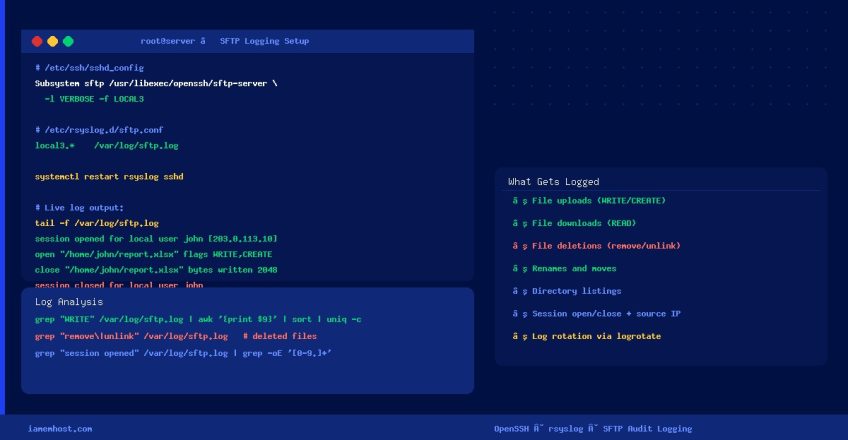

Logging all SFTP file transfers is essential for security auditing, compliance, and troubleshooting accidental overwrites or deletions. By default, OpenSSH’s internal SFTP server logs very little. This guide enables verbose SFTP logging to a dedicated /var/log/sftp.log file using rsyslog — compatible with CentOS, AlmaLinux, Rocky Linux, and Ubuntu.
How It Works
The OpenSSH SFTP subsystem supports a -l (log level) flag and a -f (syslog facility) flag. By routing its output to a dedicated syslog facility (LOCAL3), rsyslog can write SFTP events to a separate file — keeping them out of the main /var/log/messages or /var/log/auth.log.
Step 1 — Configure the SFTP Subsystem
Edit /etc/ssh/sshd_config and find the existing Subsystem sftp line. Replace it (or add it if missing):
# Find and replace the existing Subsystem line
# Common default paths — use whichever exists on your system:
Subsystem sftp /usr/libexec/openssh/sftp-server -l VERBOSE -f LOCAL3
# OR (Debian/Ubuntu path):
# Subsystem sftp /usr/lib/openssh/sftp-server -l VERBOSE -f LOCAL3
Log level options (in order of verbosity): QUIET, FATAL, ERROR, INFO, VERBOSE, DEBUG. VERBOSE logs file uploads, downloads, deletes, renames, and directory listings — the most useful level for auditing.
Step 2 — Configure rsyslog to Write to a Dedicated File
Create a dedicated rsyslog config file (cleaner than editing rsyslog.conf directly):
# Create a drop-in config file
echo "local3.*    /var/log/sftp.log" > /etc/rsyslog.d/sftp.conf

# Create the log file with correct permissions
touch /var/log/sftp.log
chmod 640 /var/log/sftp.log
chown root:root /var/log/sftp.log
Step 3 — Restart Services
# Restart rsyslog first, then sshd
systemctl restart rsyslog
systemctl restart sshd

# Verify both are running
systemctl status rsyslog sshd
Step 4 — Verify Logging is Working
Connect via SFTP from another terminal and perform a file transfer, then check the log:
# Watch the log in real time
tail -f /var/log/sftp.log

# Example log entries you should see:
# May 29 10:15:22 server sftp-server[12345]: session opened for local user john from [203.0.113.10]
# May 29 10:15:25 server sftp-server[12345]: open "/home/john/file.txt" flags WRITE,CREATE,TRUNCATE mode 0666
# May 29 10:15:25 server sftp-server[12345]: close "/home/john/file.txt" bytes read 0 written 2048
# May 29 10:15:30 server sftp-server[12345]: session closed for local user john
Step 5 — Set Up Log Rotation
Without log rotation, /var/log/sftp.log will grow indefinitely. Create a logrotate config:
cat > /etc/logrotate.d/sftp </dev/null || true
    endscript
}
EOF
Useful Log Analysis Commands
# Count file uploads per user today
grep "WRITE" /var/log/sftp.log | awk '{print $9}' | sort | uniq -c | sort -rn

# Find all files deleted via SFTP
grep "remove|unlink" /var/log/sftp.log

# Show all SFTP sessions for a specific user
grep "user john" /var/log/sftp.log

# List all source IPs that connected via SFTP
grep "session opened" /var/log/sftp.log | grep -oE '[0-9]+.[0-9]+.[0-9]+.[0-9]+' | sort | uniq -c | sort -rn
Troubleshooting
| Issue | Cause | Fix |
|---|---|---|
| Log file empty after SFTP transfer | Wrong sftp-server path or rsyslog not restarted | Run which sftp-server or check /usr/libexec vs /usr/lib path |
| SFTP stops working after sshd_config edit | Syntax error in config | Run sshd -t to test config before restarting |
Logs appear in /var/log/messages instead | rsyslog.d config not loaded | Verify file is in /etc/rsyslog.d/ and restart rsyslog |
| No log entries for directory listing | Log level too low | Change -l INFO to -l VERBOSE |