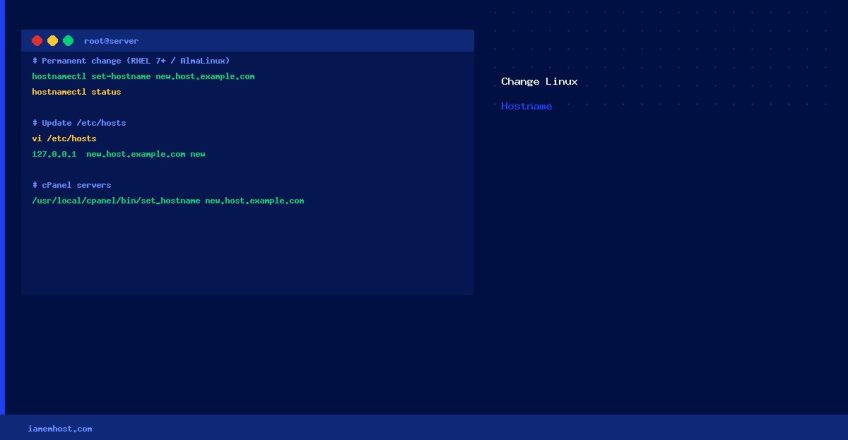

Changing a server’s hostname is a common task after provisioning or when reorganising infrastructure. This guide covers the correct method for modern Linux distributions (RHEL 7+/AlmaLinux/Rocky Linux/Ubuntu) and the legacy approach for older systems.
Modern Linux: hostnamectl (RHEL 7+ / AlmaLinux / Rocky / Ubuntu 18+)
Permanent Change (Survives Reboots)
# Set the hostname permanently
hostnamectl set-hostname new.hostname.example.com

# Verify
hostnamectl status
Temporary Change (Current Session Only)
# Changes hostname until next reboot
hostname new.hostname.example.com
Update /etc/hosts
After changing the hostname, update /etc/hosts so the new hostname resolves locally (prevents sudo warnings and some application issues):
# Edit /etc/hosts
vi /etc/hosts
# Update the line that points to 127.0.0.1 or the server's main IP:
127.0.0.1   new.hostname.example.com new
# or with the server's actual IP:
203.0.113.10  new.hostname.example.com new
Legacy Linux: RHEL 6 / CentOS 6
# Edit the network configuration file
vi /etc/sysconfig/network
# Change HOSTNAME= line:
HOSTNAME=new.hostname.example.com

# Apply without rebooting:
hostname new.hostname.example.com
Verify the Change
# All of these should show the new hostname
hostname
hostname -f
hostnamectl status | grep "Static hostname"
uname -n
cPanel Servers: Additional Step
On cPanel servers, also update the hostname through WHM to keep cPanel’s records in sync:
/usr/local/cpanel/bin/set_hostname new.hostname.example.comOr via WHM → Networking Setup → Change Hostname.