

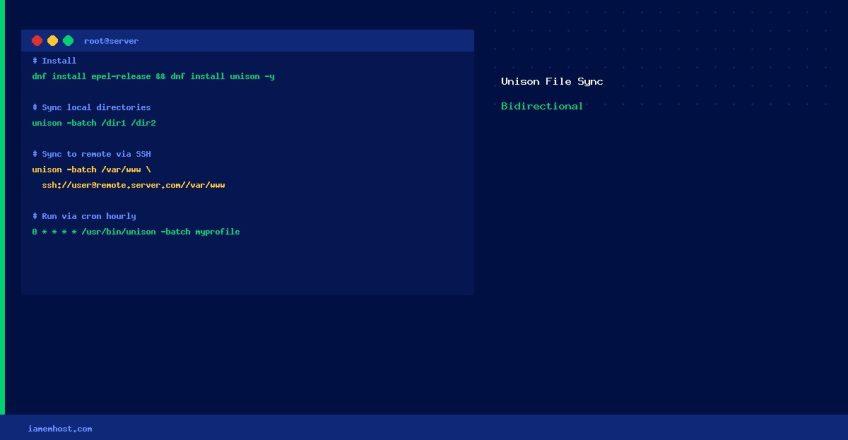

Unison is a bidirectional file synchronisation tool that can sync two directories — locally or over SSH — propagating changes from either side. Unlike rsync, which only syncs one direction, Unison detects and reconciles changes on both replicas. This guide covers installation, configuration, and common use cases.
Installation
# AlmaLinux / Rocky Linux / CentOS (requires EPEL)
dnf install epel-release -y
dnf install unison -y

# Debian / Ubuntu
apt install unison -y

# Verify
unison -version
Basic Usage
Sync Two Local Directories
# Interactive mode (confirms each change)
unison /path/to/dir1 /path/to/dir2

# Batch mode (accept all non-conflicting changes automatically)
unison -batch /path/to/dir1 /path/to/dir2
Sync a Local Directory to a Remote Server (via SSH)
Both servers must have Unison installed and the same version. SSH key-based authentication is required to avoid password prompts.
# Sync local /var/www to remote server
unison -batch /var/www ssh://user@remote.server.com//var/www

# With SSH options (custom port, identity file)
unison -batch /var/www
  "ssh://user@remote.server.com//var/www"
  -sshargs "-p 2222 -i ~/.ssh/id_ed25519"
Creating a Persistent Profile
Create a profile at ~/.unison/myprofile.prf to avoid repeating arguments:
# ~/.unison/myprofile.prf
root = /var/www
root = ssh://user@remote.server.com//var/www
batch = true
ignore = Name *.log
ignore = Name .git
sshargs = -i /root/.ssh/id_ed25519
# Run using the profile
unison myprofileSchedule Automatic Sync via Cron
# Add to root crontab: sync every hour
crontab -e
0 * * * * /usr/bin/unison -batch myprofile >> /var/log/unison.log 2>&1
Unison vs rsync
| Feature | Unison | rsync |
|---|---|---|
| Direction | Bidirectional | One-way |
| Conflict detection | ✅ Yes | ❌ No (overwrites) |
| SSH transport | ✅ Yes | ✅ Yes |
| Incremental sync | ✅ Yes | ✅ Yes |
| Version requirement | Must match on both ends | Independent versions OK |