
Put a Windows Server on a public IP address with Remote Desktop open and you will see failed login attempts in the event log within minutes. Automated bots scan the whole internet for port 3389 around the clock, then guess passwords or exploit known flaws. Exposed RDP remains one of the most common ways ransomware gets into servers. This RDP security guide shows the layered controls that actually stop these attacks, from quick wins to the gold standard of never exposing RDP at all.
Why RDP Gets Attacked
Remote Desktop gives full interactive control of a server, so a single guessed password is a total compromise. Attackers use three approaches:
- Brute force and password spraying against
Administratorand other common usernames - Credential stuffing with passwords leaked from other breaches
- Exploits for unpatched RDP vulnerabilities such as BlueKeep (CVE-2019-0708)
You can see an attack in progress right now. In Event Viewer open Windows Logs » Security and filter for event ID 4625 (failed logon). Logon type 10 is RDP, and logon type 3 with NLA enabled is how network-level attempts appear.
# Count failed logons by source IP over the last hour
Get-WinEvent -FilterHashtable @{LogName='Security';Id=4625;StartTime=(Get-Date).AddHours(-1)} |
  ForEach-Object { $_.Properties[19].Value } | Group-Object | Sort Count -Descending | Select -First 10
1. Never Expose RDP Directly If You Can Avoid It
The most effective control is to keep 3389 closed to the internet entirely and reach servers through one of these:
| Method | How it works | Best for |
|---|---|---|
| VPN (WireGuard, OpenVPN, IPsec) | Connect to the VPN, then RDP over the private address | Small teams and admins |
| RD Gateway | RDP tunnelled over HTTPS (443) with its own authentication and policies | Many users, auditing needs |
| Bastion or jump host | A hardened intermediate server | Larger environments |
| Firewall allow-list | Port open only to specific IPs | Simple fixed-IP setups |
If you run a firewall appliance, a site-to-site or remote-access VPN is straightforward. See pfSense Site-to-Site IPsec VPN or FortiGate SSL VPN guides.
2. Restrict Port 3389 with Windows Firewall
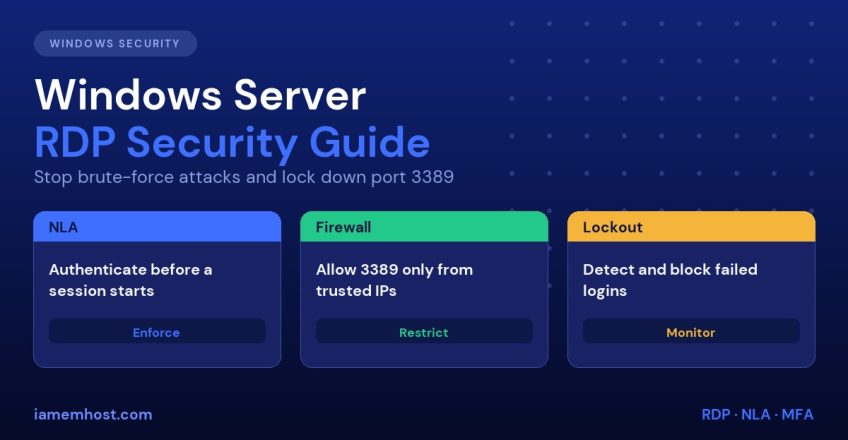
If you must keep RDP reachable, allow only trusted source addresses:
# Remove the broad default rules
Disable-NetFirewallRule -DisplayGroup "Remote Desktop"

# Allow RDP only from your office / VPN range
New-NetFirewallRule -DisplayName "RDP restricted" -Direction Inbound -Protocol TCP -LocalPort 3389 -RemoteAddress 203.0.113.10,198.51.100.0/24 -Action Allow
Do this from a console or an existing session and test from a second connection before disconnecting. Also close the UDP 3389 rule if you do not need RDP over UDP.
3. Enforce Network Level Authentication (NLA)
NLA forces the client to authenticate before a full desktop session is created. That blocks many pre-authentication exploits and stops unauthenticated users from consuming server resources.
- Open System Properties » Remote (run
sysdm.cpl) - Tick Allow connections only from computers running Remote Desktop with Network Level Authentication
Or enforce it with PowerShell:
(Get-WmiObject -Class "Win32_TSGeneralSetting" -Namespace root\cimv2\terminalservices -Filter "TerminalName='RDP-tcp'").SetUserAuthenticationRequired(1)Also set the Security Layer to *SSL (TLS 1.0)* or *Negotiate* and the encryption level to *High* in Group Policy at Computer Configuration » Administrative Templates » Windows Components » Remote Desktop Services » Remote Desktop Session Host » Security.
4. Configure Account Lockout
Lockout slows brute force to a crawl. Set it in Local Security Policy (secpol.msc) under Account Policies » Account Lockout Policy:
| Setting | Recommended value |
|---|---|
| Account lockout threshold | 5 invalid attempts |
| Account lockout duration | 30 minutes |
| Reset lockout counter after | 30 minutes |
One caution: the built-in Administrator account can be locked out by an attacker as a denial of service. Rename it, create a separate named admin account, and use a long passphrase of at least 14 characters.
5. Use Strong Authentication and Least Privilege
- Rename or disable the default Administrator and never use common names such as
adminoruser - Restrict who can log on: only members of a dedicated “Remote Desktop Users” group, and remove everyone else under Allow log on through Remote Desktop Services policy
- Enable multi-factor authentication with an MFA add-on for RDP such as Duo, Microsoft Entra MFA via an NPS extension, or an RD Gateway with MFA
- Never reuse passwords across servers; use unique, long and generated credentials
6. Change the Port? A Minor Layer Only
Moving RDP from 3389 to another port reduces log noise from basic bots, but a port scan finds the new port quickly. Treat it as cosmetic, never as a replacement for the controls above. If you do change it, update the firewall and set the registry value HKLM\System\CurrentControlSet\Control\Terminal Server\WinStations\RDP-Tcp\PortNumber.
7. Automatic Blocking of Attackers
Windows has no built-in equivalent of Fail2Ban, but tools exist: RDPGuard, IPBan (open source), and EvlWatcher read failed-logon events and add firewall blocks automatically. A simple approach is to schedule a PowerShell script that blocks IPs with more than ten 4625 events in ten minutes. For the Linux equivalent, see Fail2Ban explained.
8. Patch and Reduce the Attack Surface
- Install Windows updates promptly, especially RDP and Remote Desktop Gateway fixes
- Disable Remote Desktop Services entirely on servers that do not need it
- Disable clipboard, drive and printer redirection in Group Policy for untrusted users
- Set idle and disconnected session time limits so abandoned sessions are closed
- Consider Windows Defender Credential Guard on supported editions
9. Monitor and Alert
Key events to collect and alert on in the Security log:
| Event ID | Meaning |
|---|---|
| 4625 | Failed logon |
| 4624 (type 10) | Successful RDP logon |
| 4740 | Account locked out |
| 4778 / 4779 | Session reconnected / disconnected |
| 1149 | RDP connection authenticated (Operational log, TerminalServices-RemoteConnectionManager) |
A successful logon from an unfamiliar IP at 3 AM is more important than a thousand failures. Forward these logs to a central location so an attacker cannot erase them.
RDP Security Checklist
- Port 3389 not open to the whole internet
- VPN, RD Gateway or IP allow-list in place
- NLA enforced
- Lockout policy set, default admin renamed
- Strong unique passwords plus MFA
- Updates installed
- Failed-logon monitoring and automatic blocking
- Backups kept off the server and tested
For a broader baseline, read our Windows Server hardening checklist for hosting, and if you run IIS on the same server, see IIS troubleshooting.
Frequently Asked Questions
Is it safe to leave RDP open to the internet?
Not recommended. Even with strong passwords and NLA, an exposed port invites constant attacks and future vulnerabilities. Use a VPN or RD Gateway instead, or restrict the port by IP address.
Does changing the RDP port stop attacks?
It reduces automated scanning noise but does not stop a determined attacker. Use it only alongside real controls such as MFA, NLA and firewall restrictions.
What is NLA and should it always be enabled?
Network Level Authentication requires users to authenticate before a session is established. It should be enabled on all modern servers unless a very old client cannot support it.
How can I see who is attacking my RDP?
Check Security event ID 4625 in Event Viewer and group by source IP. Tools such as IPBan can block repeat offenders automatically.