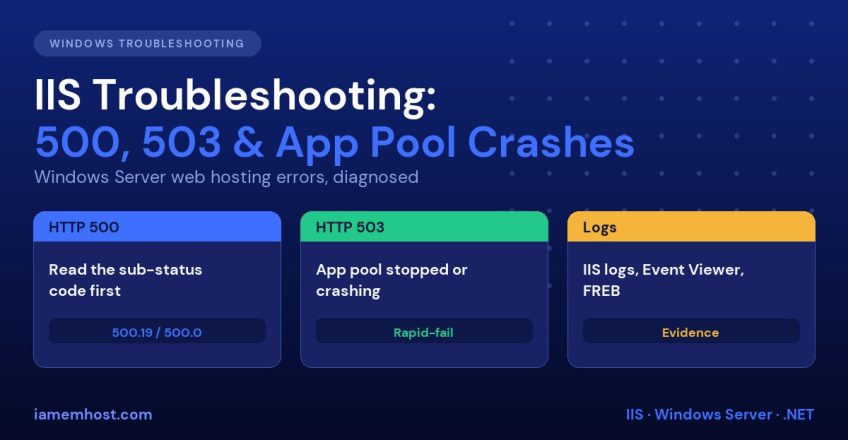

When a Windows-hosted site returns a bare “HTTP Error 500” or “503 Service Unavailable”, the browser tells you almost nothing. The real information is hidden in sub-status codes, the Windows event log and IIS logs. This IIS troubleshooting guide shows you where to look and how to fix the failures that account for most Windows hosting tickets: broken web.config files, application pool crashes, permission problems and resource exhaustion.
Step 0: Get the Real Error
By default IIS shows a generic error page to remote visitors. To see the detailed message, browse the site from the server itself (http://localhost), or temporarily set detailed errors in IIS Manager under Error Pages » Edit Feature Settings » Detailed errors. Do not leave detailed errors enabled in production, because they leak paths and configuration.
Every IIS error has a status code and a sub-status code. The pair is what identifies the problem:
| Code | Meaning | Common cause |
|---|---|---|
| 500.0 | Module or ISAPI error | Unhandled exception in the application |
| 500.19 | Configuration data invalid | Bad web.config, missing IIS feature, permissions on the config file |
| 500.21 | Module not recognised | Handler missing (ASP.NET not installed) |
| 500.24 | Integrated pipeline impersonation | system.web/identity impersonate="true" in Integrated mode |
| 503 | Service Unavailable | Application pool stopped or disabled |
| 404.3 | MIME type not mapped | Static file type not registered |
| 403.14 | Directory listing denied | No default document |
| 502.5 | ANCM process failure | ASP.NET Core app failed to start |
Fixing HTTP 500.19 (Configuration Errors)
This error means IIS could not read a configuration file. The error page tells you the config file and line number, and the “Config Error” field usually names the cause.
- Syntax error in web.config. Open it in an editor that validates XML. A missing closing tag or an unescaped
&is enough. - Locked section. “This configuration section cannot be used at this path” means the section is locked at server level. Unlock it with:
%windir%\system32\inetsrv\appcmd.exe unlock config -section:system.webServer/handlers- Missing IIS feature or module. Directives such as
<rewrite>need the URL Rewrite module installed. Install it, or remove the directive. - File permissions. The
IIS_IUSRSgroup and the application pool identity need read access to the site folder andweb.config. See the permissions section below. - Wrong .NET version in the pool. A .NET 4.x app in a pool set to “No Managed Code” or vice versa causes 500.19 or 500.21.
Fixing HTTP 503 Service Unavailable
A 503 on IIS almost always means the application pool is stopped. Open IIS Manager » Application Pools and check the Status column.
If the pool shows Stopped and keeps stopping after you start it, Rapid-Fail Protection is tripping: IIS disables a pool that crashes five times within five minutes (the defaults). To find out why, check the event log immediately:
# PowerShell: last 20 IIS/WAS related errors
Get-WinEvent -FilterHashtable @{LogName='System'; ProviderName='Microsoft-Windows-WAS'} -MaxEvents 20 | Format-List TimeCreated,Id,Message
Get-WinEvent -FilterHashtable @{LogName='Application'; Level=2} -MaxEvents 20 | Format-List TimeCreated,ProviderName,Message
Useful event IDs to recognise:
| Event ID | Source | Meaning |
|---|---|---|
| 5002 | WAS | Pool identity failed (wrong password or locked account) |
| 5057 | WAS | Pool has been disabled by rapid-fail protection |
| 5059 | WAS | Pool disabled after repeated crashes |
| 1000 | Application Error | Worker process (w3wp.exe) crashed, shows the faulting module |
| 2300, 2301 | .NET Runtime | Unhandled .NET exception with stack trace |
The faulting module in event 1000 tells you where to look. clr.dll points to the .NET application, a PHP DLL points to the PHP handler, and ntdll.dll alone usually means memory corruption or an unhealthy native module.
Application pool identity problems
If you use a custom account for the pool, a password change or account lockout stops it instantly (event 5002). Re-enter the password in Advanced Settings » Identity, or use the built-in ApplicationPoolIdentity and grant it only the folder permissions it needs.
Fixing Permission Problems
The correct approach is to grant NTFS rights to the pool identity rather than “Everyone”. For a pool named MySite:
icacls "C:\inetpub\wwwroot\MySite" /grant "IIS AppPool\MySite:(OI)(CI)RX"
# Write access only where the app really needs it (uploads, cache, logs)
icacls "C:\inetpub\wwwroot\MySite\uploads" /grant "IIS AppPool\MySite:(OI)(CI)M"
Never give the pool identity write access to the whole site root, because that allows a compromised application to modify its own code.
Application Pool Crashes and Recycling
Pools that recycle constantly can cause intermittent 500 and 503 errors and lost sessions. Check Recycling settings and the reasons recorded in event ID 5074 to 5080. Common triggers are:
- Private memory limit reached (sites leaking memory)
- Regular time interval of 1740 minutes, the default
- Configuration change such as editing
web.configorappsettings.json - Request limit that was set unintentionally
Leaving a pool on the default “Start Mode: OnDemand” with a short idle timeout (20 minutes) causes a slow first request after quiet periods. For production apps set Start Mode to AlwaysRunning and Idle Time-out to 0.
Use the IIS Logs
IIS logs live in %SystemDrive%\inetpub\logs\LogFiles\W3SVC<site-id>\. Each line contains the status, sub-status, Win32 status and time taken. Sort for errors with PowerShell:
Select-String -Path "C:\inetpub\logs\LogFiles\W3SVC1\u_ex*.log" -Pattern " 500 | 503 " | Select -Last 20The sc-win32-status column helps too: 5 is access denied, 64 is a client that disconnected, and 2 is file not found.
Failed Request Tracing for Hard Problems
When logs do not explain an intermittent 500, enable Failed Request Tracing (FREB): install the feature under Web Server » Health and Diagnostics, enable it for the site, and add a rule for status codes 500-599, or any request taking longer than 10 seconds. IIS then writes a detailed XML trace of every module that handled the request, showing precisely where it failed.
When the Problem Is the Server, Not the Site
If many sites fail at once, check shared resources:
- Memory and CPU: Task Manager or
Get-Counter '\Memory\Available MBytes'. Find the heavy pool by matchingw3wp.exeprocess IDs:appcmd list wp. - Disk space: a full system drive stops logging and crashes services.
- Windows Update restarts: unexpected reboots look like random 503s. Check event ID 6005 and 1074 in the System log.
- Port or binding conflict: another service occupying 80 or 443 prevents the site from starting. Use
netstat -ano | findstr :443.
Quick IIS Troubleshooting Checklist
- Note the full status and sub-status code
- Test on the server itself with detailed errors
- Check the application pool status
- Read the System and Application event logs
- Review
web.configand installed IIS modules - Verify NTFS permissions for the pool identity
- Check IIS logs for the time of failure
- Enable Failed Request Tracing if still unclear
For hardening the server these sites run on, read our Windows Server hardening checklist and RDP security guide.
Frequently Asked Questions
What causes “HTTP Error 500.19 – Internal Server Error” on IIS?
IIS cannot read or apply a configuration file. The usual reasons are invalid XML in web.config, a missing module such as URL Rewrite, a locked configuration section or wrong file permissions.
Why does my IIS application pool keep stopping?
Repeated crashes trigger Rapid-Fail Protection, which disables the pool. Check the System and Application event logs for the crash cause. A failed identity password and unhandled exceptions are the most common reasons.
How do I restart IIS without rebooting the server?
Run iisreset from an elevated prompt to restart all of IIS, or recycle a single application pool to avoid affecting other sites.
Where is the IIS error log?
Request logs are in C:\inetpub\logs\LogFiles. Detailed application errors go to the Windows Event Viewer, and HTTP.sys errors are in C:\Windows\System32\LogFiles\HTTPERR.