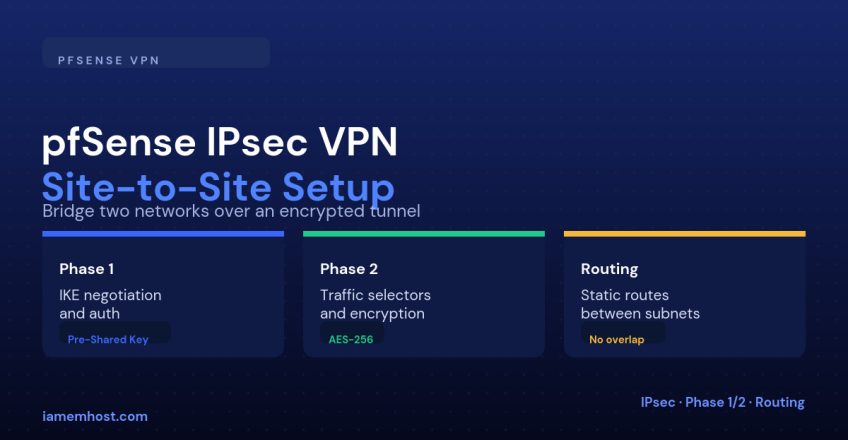

A site-to-site IPsec VPN lets two separate networks — a branch office and headquarters, or two data centers — talk to each other as if they were on the same LAN, encrypted over the public internet in between. pfSense’s IPsec implementation is free, built in, and configured entirely through the web GUI, but it has two distinct negotiation phases that both sides must agree on exactly, or the tunnel simply won’t come up.
Before You Start: Plan the Addressing
| Requirement | Why |
|---|---|
| Non-overlapping subnets on each side | If both sites use 192.168.1.0/24, routing between them is ambiguous — renumber one side first |
| A static public IP (or dynamic DNS) on at least one side | Phase 1 needs a stable address to negotiate against |
| Matching Phase 1 and Phase 2 settings on both firewalls | IPsec negotiation fails silently if encryption/hash/DH group don’t match exactly |
Step 1: Configure Phase 1 (the IKE tunnel itself)
VPN > IPsec > Add P1
  Key Exchange version: IKEv2
  Remote Gateway: 203.0.113.50   (the other site's public IP)
  Authentication Method: Mutual PSK
  Pre-Shared Key: (long random string, identical on both sides)
  Encryption Algorithm: AES 256
  Hash Algorithm: SHA256
  DH Group: 14
Step 2: Configure Phase 2 (what traffic goes through the tunnel)
VPN > IPsec > P1 entry > Add P2
  Local Network: 10.10.0.0/24     (this site's LAN)
  Remote Network: 10.20.0.0/24    (other site's LAN)
  Protocol: ESP
  Encryption Algorithm: AES 256
  Hash Algorithm: SHA256
  PFS key group: 14
Mirror this exactly on the second firewall, with Local and Remote networks swapped, and the same Remote Gateway pointed back at this site’s public IP.
Step 3: Allow the Traffic Through the Firewall
IPsec has its own rule tab — traffic arriving through the tunnel is not automatically permitted just because the tunnel is up:
Firewall > Rules > IPsec
  Action: Pass
  Protocol: any
  Source: 10.20.0.0/24  (remote LAN)
  Destination: 10.10.0.0/24  (local LAN)
Step 4: Confirm It’s Actually Up
Status > IPsec
# Phase 1 should show "established"
# Phase 2 should show "installed"

ping 10.20.0.1   # from a host on the local LAN, targeting a host on the remote LAN
Common Reasons It Won’t Connect
| Symptom | Likely cause |
|---|---|
| Phase 1 never establishes | Mismatched encryption/hash/DH group, or a firewall upstream blocking UDP 500/4500 |
| Phase 1 up, Phase 2 fails | Local/Remote network definitions don’t mirror correctly between the two sites |
| Tunnel up, but no ping across | Missing IPsec firewall rule, or overlapping subnets |
| Tunnel drops periodically | Mismatched or absent Dead Peer Detection settings on one side |
Conclusion
pfSense site-to-site IPsec comes down to getting Phase 1 and Phase 2 to match exactly on both ends, remembering the dedicated IPsec firewall-rule tab, and planning non-overlapping subnets before you start. Once it’s up, Status > IPsec and a simple cross-site ping are all you need to confirm two networks are now reachable as one.