
During a network reconnaissance scan, tools like Nmap use TCP/IP fingerprinting techniques — analysing packet characteristics such as TTL (Time To Live), TCP window sizes, and IP flags — to identify the operating system running on a remote host. Revealing your OS version gives attackers a head start in selecting targeted exploits. This guide shows how to obscure your Linux OS fingerprint from Nmap OS detection scans by manipulating the default TTL value.
How Nmap OS Detection Works
Nmap’s OS detection (nmap -O) sends a series of specially crafted TCP, UDP, and ICMP probes to the target host and compares the responses against its OS fingerprint database (stored in nmap-os-db). One of the key signals it uses is the initial TTL value in IP packet headers:
| Operating System | Default TTL |
|---|---|
| Linux (most distros) | 64 |
| Windows | 128 |
| Cisco IOS / Network devices | 255 |
| Solaris / AIX | 254 |
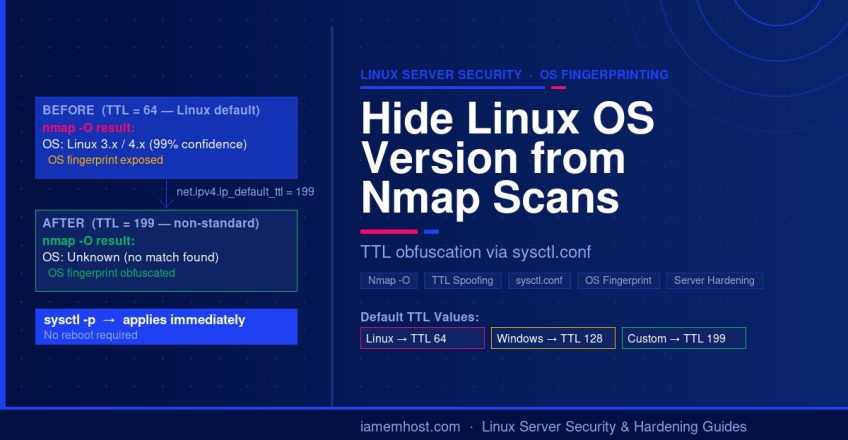
By changing your default TTL to a non-standard value that does not match any known OS fingerprint, you make OS identification significantly harder — Nmap will typically report “OS details: Unknown” or a low-confidence guess.
Step 1: Modify the Default TTL in sysctl.conf
Open /etc/sysctl.conf and add the following line. A value of 199 does not match any common OS fingerprint in Nmap’s database, which breaks TTL-based identification:
vi /etc/sysctl.confAdd at the end of the file:
net.ipv4.ip_default_ttl = 199Save and exit (:wq in vi).
Step 2: Apply the Change Without Rebooting
Reload the sysctl configuration to apply the new TTL immediately — no reboot required:
sysctl -pVerify the change was applied:
sysctl net.ipv4.ip_default_ttl
# Expected output: net.ipv4.ip_default_ttl = 199
Step 3: Verify OS Fingerprint Obfuscation
Test the result from an external machine using Nmap’s OS detection flag. You need a machine outside your server to run this — use an online scanner or a VPS in another network:
# Run from a separate external machine (requires root/sudo)
nmap -O your-server-ip
With the modified TTL, Nmap should now report the OS as unknown or give a very low confidence result rather than correctly identifying Linux. You can also use the free online Nmap scanner at pentest-tools.com to test externally without needing a second server.
Important Limitations to Understand
TTL manipulation alone is not a complete security measure. Here is what it does and does not protect against:
| Protection Level | Details |
|---|---|
| ✅ Defeats basic TTL-based OS fingerprinting | Nmap -O will fail to identify the OS correctly |
| ✅ Increases attacker effort | Automated scanners that rely on TTL matching are confused |
| ❌ Does not hide open ports | Port scanning still works — use a firewall to restrict port exposure |
| ❌ Does not hide service banners | Apache, SSH, and other services still advertise their version strings — disable banners separately |
| ❌ Advanced Nmap OS detection still works partially | Nmap uses many probes beyond TTL; a skilled attacker may still get a partial match |
Additional Server Hardening Steps
For a properly hardened server, combine TTL obfuscation with these additional measures:
- Hide SSH version banner: Set
DebianBanner noand remove the version from/etc/ssh/sshd_config - Hide Apache version: Set
ServerTokens ProdandServerSignature Offin Apache config - Hide Nginx version: Set
server_tokens offinnginx.conf - Use a firewall (CSF/iptables): Block all ports not in active use to reduce the scan surface
- Enable port knocking: Hides SSH and other management ports from scanners entirely