

“It works on my machine” is the oldest excuse in software — and Docker is the tool that finally retired it. Docker packages an application together with everything it needs to run — code, runtime, libraries, and settings — into a portable container that behaves identically on your laptop, a colleague’s machine, and a production server. This beginner’s guide explains the core concepts and walks you through containerizing your first web app.
Containers vs Virtual Machines
A virtual machine virtualizes an entire operating system — gigabytes in size, slow to boot. A container shares the host’s kernel and isolates only the application, so it’s measured in megabytes and starts in seconds. That efficiency is why containers have become the standard way to ship and run software.
Three Concepts You Must Know
| Term | What it is |
|---|---|
| Image | A read-only blueprint of your app and its dependencies |
| Container | A running instance of an image |
| Dockerfile | A recipe of instructions to build an image |
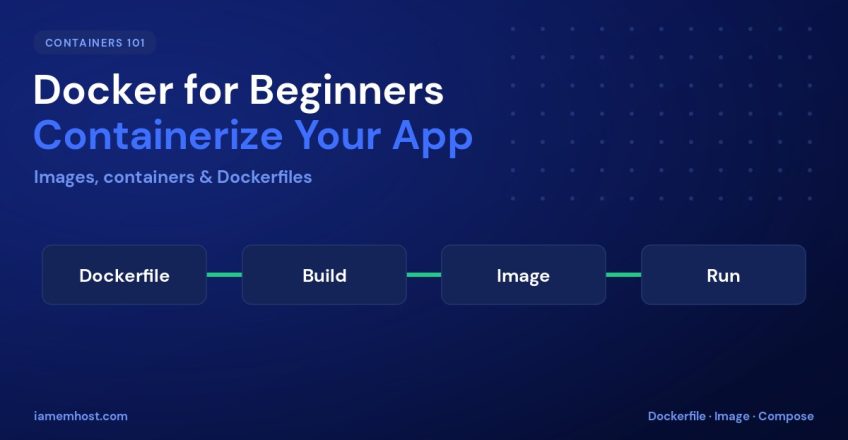
The relationship is simple: a Dockerfile builds an image, and an image runs as one or more containers.
Installing Docker
# Quick install on Linux
curl -fsSL https://get.docker.com | sh

# Verify
docker --version
docker run hello-world
The hello-world container confirms your installation is working. On Windows and macOS, install Docker Desktop instead.
Your First Dockerfile
Let’s containerize a simple Node.js web app. In your project folder, create a file named Dockerfile:
# Start from an official base image
FROM node:20-alpine

# Set the working directory inside the container
WORKDIR /app

# Install dependencies first (better layer caching)
COPY package*.json ./
RUN npm install

# Copy the rest of the source code
COPY . .

# Document the port and define the start command
EXPOSE 3000
CMD ["node", "server.js"]
Build and Run
# Build an image and tag it "myapp"
docker build -t myapp .

# Run it, mapping host port 8080 to container port 3000
docker run -d -p 8080:3000 --name web myapp

# See it running, then view logs
docker ps
docker logs web
Your app is now reachable at http://localhost:8080 — running in an isolated container with the exact Node version you specified.
Multi-Container Apps with Docker Compose
Real apps need more than one service — a web app plus a database, say. Docker Compose defines them all in one YAML file and starts them together:
# docker-compose.yml
services:
  web:
    build: .
    ports:
      - "8080:3000"
    depends_on:
      - db
  db:
    image: postgres:16
    environment:
      POSTGRES_PASSWORD: secret
Then bring the whole stack up with a single command: docker compose up -d.
Handy Commands to Remember
| Command | Does |
|---|---|
docker images | List local images |
docker ps -a | List all containers |
docker stop / rm | Stop / remove a container |
docker exec -it web sh | Open a shell inside a container |
docker system prune | Clean up unused data |
Conclusion
Docker takes the “works on my machine” risk out of deployment. Remember the trio — a Dockerfile builds an image that runs as a container — write a simple Dockerfile, build, and run. Add Docker Compose when you need multiple services, and you have a portable, reproducible environment that runs the same everywhere.