
When you can’t access the WordPress admin panel to change the site URL (e.g., after a domain migration or SSL change), you can update it directly in wp-config.php or functions.php. This guide covers all methods — from the quickest to the most thorough.
Method 1: wp-config.php (Recommended — Permanent)
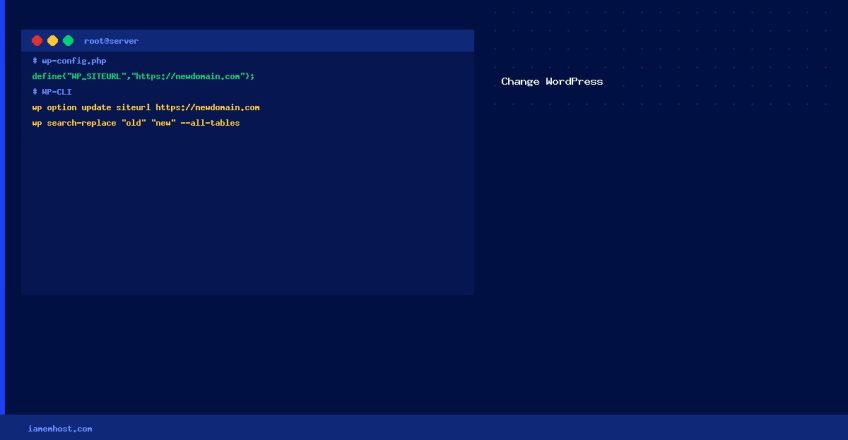
Add these lines to wp-config.php before the /* That's all, stop editing! */ comment:
define( 'WP_HOME', 'https://www.newdomain.com' );
define( 'WP_SITEURL', 'https://www.newdomain.com' );
This overrides whatever is stored in the database. Once the admin is accessible, remove these lines and update the URL via Settings → General instead.
Method 2: functions.php (Temporary Emergency Fix)
Add these lines at the top of your active theme’s functions.php immediately after <?php:
<?php
update_option( 'siteurl', 'https://www.newdomain.com' );
update_option( 'home', 'https://www.newdomain.com' );
Visit the site once to let WordPress update the database. Remove these lines immediately after — leaving them in creates unnecessary database writes on every page load.
Method 3: WP-CLI (Fastest for SSH Access)
# Update both URL options in one command
wp option update siteurl 'https://www.newdomain.com'
wp option update home 'https://www.newdomain.com'

# Also do a database search-replace for all remaining old URL references
wp search-replace 'http://olddomain.com' 'https://www.newdomain.com' --all-tables
Method 4: Direct Database Update
# Via MySQL CLI or phpMyAdmin
UPDATE wp_options SET option_value = 'https://www.newdomain.com' WHERE option_name = 'siteurl';
UPDATE wp_options SET option_value = 'https://www.newdomain.com' WHERE option_name = 'home';
After Updating the URL
- Clear all caching plugins and server-side cache
- Update any hardcoded URLs in page/post content using WP-CLI search-replace
- Update your
.htaccessif it contains hardcoded domain references - Regenerate your sitemap in Yoast/RankMath
- Submit the updated sitemap to Google Search Console