
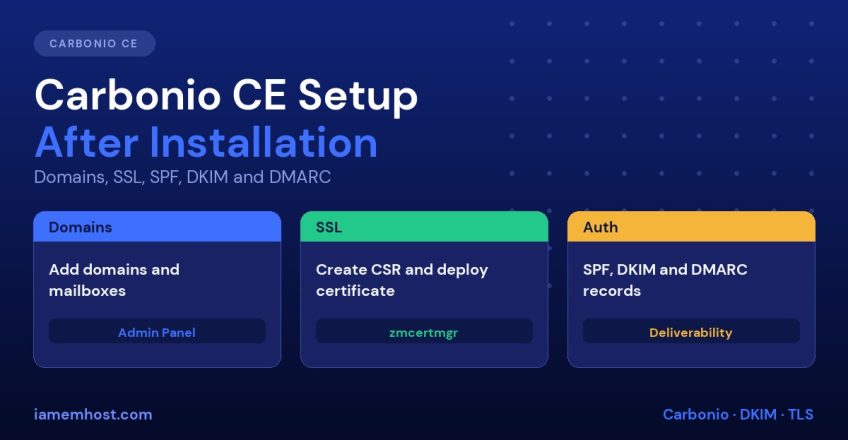

A freshly installed mail server can send and receive mail, but it is not ready for real users yet. Mail from an unauthenticated server is often rejected or filtered to spam, and users will see certificate warnings until a trusted SSL certificate is installed. This Carbonio CE setup checklist continues from our Carbonio CE installation guide and covers the steps that matter most: domains and mailboxes, a trusted certificate, SPF, DKIM, DMARC and delivery tests.
Commands follow the Zextras documentation for the Carbonio CE 26.9 line as of November 2026. Check the documentation for your version before running them in production.
Carbonio CE Setup Checklist Overview
- Sign in to the Admin Panel and set public host names
- Add your mail domain and create mailboxes
- Install a trusted SSL certificate
- Publish SPF, DKIM and DMARC records
- Check reverse DNS and open ports
- Send test messages and read the headers
- Set up monitoring, firewall and backups
1. Admin Panel and Public Host Names
Sign in at https://mail.example.com:6071/ with the zextras@example.com administrator account. Open Domains, select your domain and set Public Server Host Name and Public Service Port (443) under General Settings. Mail clients and the web interface use these values to build links.
Keep port 6071 closed to the public internet where you can and reach it through a VPN or an IP allow-list. The official documentation also recommends this.
2. Add Domains and Mailboxes
In the Admin Panel, go to Domains, add each mail domain you will host, and then create users under Accounts. Plan quotas up front: set a default mailbox quota per class of service so one user cannot fill the disk. For shared mailboxes and aliases, use the distribution list and alias features in the same area.
Every new domain also needs the DNS records in step 4, otherwise mail sent from it is more likely to be treated as spam.
3. Install a Trusted SSL Certificate
You can obtain certificates from Let’s Encrypt, which the Admin Panel supports under the domain’s settings, or from a commercial certificate authority. If you use a commercial certificate, the documented command-line procedure is:
su - zextras

# 1. Create a CSR
/opt/zextras/bin/zmcertmgr createcsr comm -new -subject "/C=IN/ST=State/L=City/O=Company/CN=mail.example.com" -subjectAltNames mail.example.com

# Files are written to /opt/zextras/ssl/carbonio/commercial/

# 2. Submit the CSR to your CA, then verify the certificate and chain
zmcertmgr verifycrt comm commercial.key commercial.crt commercial_ca.crt

# 3. Deploy it
zmcertmgr deploycrt comm commercial.crt commercial_ca.crt

# 4. Confirm what is deployed
zmcertmgr viewdeployedcrt
Restart the services afterwards. On Ubuntu 24.04 and RHEL 9 use systemctl restart carbonio.target (as root); on 22.04 and RHEL 8 use zmcontrol restart as the zextras user. If you need SSL certificates, see our SSL certificates page. Also remember that certificates expire, so put the expiry date in your calendar or monitor it. See Let’s Encrypt SSL auto-renewal for the automation concepts.
4. SPF, DKIM and DMARC
These three records prove your mail is legitimate. They are the core of deliverability, and they are required by large providers for bulk senders; see Google and Yahoo bulk sender requirements.
SPF
Publish one TXT record on the domain that lists the servers allowed to send for it. For a single server:
example.com. IN TXT "v=spf1 ip4:203.0.113.124 -all"Use ~all while testing, and -all once you are sure all legitimate senders are included. Never publish more than one SPF record, and watch the 10-lookup limit, as explained in SPF flattening.
DKIM
Generate a key with the Carbonio utility:
su - zextras
/opt/zextras/libexec/zmdkimkeyutil -a -d example.com
The private key is stored in LDAP and the command prints a TXT record for <selector>._domainkey.example.com. According to the documentation, signing starts immediately, so avoid sending unsigned or invalidly signed mail by clearing the identity first, then re-enabling it after the DNS record is live:
carbonio prov md example.com DKIMIdentity ""
# publish the TXT record at your DNS provider, then check:
nslookup -type=txt SELECTOR._domainkey.example.com
carbonio prov md example.com DKIMIdentity "example.com"
carbonio prov -l gd example.com | grep DKIM
Replace SELECTOR with the selector the utility printed. Rotate keys periodically; see DKIM key rotation.
DMARC
Start in monitoring mode and tighten later:
_dmarc.example.com. IN TXT "v=DMARC1; p=none; rua=mailto:dmarc-reports@example.com"Read the reports (How to read DMARC reports), fix legitimate senders that fail, then move to p=quarantine and finally p=reject. The full background is in How to Configure SPF, DKIM and DMARC.
5. Reverse DNS and Network Checks
Your server’s IP must have a PTR record that resolves to the mail host name (mail.example.com), and that name must resolve back to the same IP. Many receivers reject mail without this. See Reverse DNS (PTR) records and email deliverability.
Also confirm that port 25 is open outbound. Many cloud and VPS providers block it by default, and you may need to ask for it to be unblocked. Test from the server:
nc -vz gmail-smtp-in.l.google.com 256. Test Delivery and Read the Headers
Send a message from a Carbonio mailbox to an outside Gmail or Outlook address and open Show original (Gmail). Check for SPF: PASS, DKIM: PASS and DMARC: PASS. External test tools such as mail-tester.com give a score and point out problems. If the mail lands in spam, check the blacklist status of your IP and consider a gradual ramp-up: IP and domain warm-up plan.
7. Run Operations Safely
- Firewall and access: allow only the required ports and restrict 6071
- Fail2Ban or equivalent for login protection
- Updates: apply Carbonio upgrades on a schedule after taking a backup. See Carbonio backup and disaster recovery
- Monitoring: disk space, memory, certificate expiry and mail queue length
Frequently Asked Questions
Do I need DKIM on every domain?
Yes. Generate a DKIM key and publish its TXT record for every domain that sends mail through the server.
Can I use Let’s Encrypt with Carbonio CE?
Yes. The Admin Panel includes Let’s Encrypt support for domains, and the documentation also describes a command-line procedure.
Why does Gmail say my mail is not authenticated?
One of SPF, DKIM or DMARC is missing or misaligned, or the PTR record is wrong. Check each record and the message headers.
Is port 6071 safe to expose?
It is the administration interface, so restrict it by firewall or VPN. The documentation advises exposing it only when really needed.