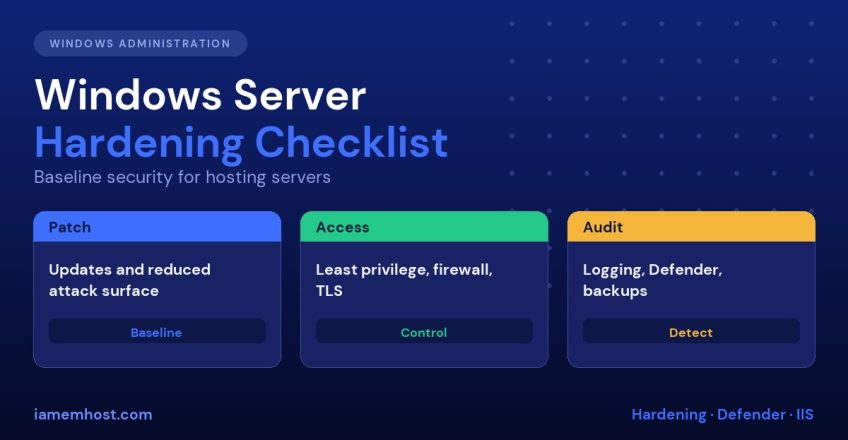

A fresh Windows Server installation is configured for compatibility, not for the internet. Left at defaults, it exposes legacy protocols, installs features you will never use and logs very little of what an investigator would want to see. For a hosting server running IIS, ASP.NET or SQL Server, a day of Windows Server hardening removes most of the easy attack paths. This checklist is ordered by impact and includes the PowerShell commands, so you can apply it to Windows Server 2019, 2022 and 2025.
1. Patch First, and Keep Patching
Unpatched servers are the number one cause of compromise. Configure Windows Update to install security updates automatically on a schedule, and reboot in a defined maintenance window.
# See installed updates and the last install date
Get-HotFix | Sort InstalledOn -Descending | Select -First 10

# Install the PSWindowsUpdate module and apply updates
Install-Module PSWindowsUpdate -Force
Get-WindowsUpdate -AcceptAll -Install -AutoReboot
Keep application stacks patched too: .NET, PHP, SQL Server, and any third-party panels.
2. Remove What You Do Not Need
Every role, feature and service is attack surface. List and remove what is unused:
Get-WindowsFeature | Where Installed
Uninstall-WindowsFeature Web-Ftp-Server, Telnet-Client, SMB1Protocol -ErrorAction SilentlyContinue
Get-Service | Where {$_.Status -eq 'Running'} | Sort DisplayName
Consider Server Core, which has no desktop shell, fewer components and a much smaller patch footprint than Desktop Experience. Disable services such as Print Spooler on web servers (it was behind the PrintNightmare vulnerabilities):
Stop-Service Spooler -Force; Set-Service Spooler -StartupType Disabled3. Disable Legacy and Weak Protocols
| Protocol | Action | Why |
|---|---|---|
| SMBv1 | Disable | Used by EternalBlue and WannaCry |
| NTLMv1, LM | Disable, require NTLMv2 | Easily cracked hashes |
| TLS 1.0 and 1.1 | Disable | Deprecated and flagged by PCI DSS |
| SSL 2.0 and 3.0 | Disable | Broken (POODLE) |
| Weak ciphers (RC4, 3DES) | Disable | Known attacks |
Set-SmbServerConfiguration -EnableSMB1Protocol $false -Force
Set-SmbServerConfiguration -RequireSecuritySignature $true -Force
To manage TLS and cipher suites graphically, use the free IIS Crypto tool and apply the “Best Practices” template, then reboot and test your sites with an SSL checker.
4. Lock Down the Network with Windows Firewall
Keep the firewall on for all profiles and allow only what is needed: 80, 443, and management ports from trusted addresses.
Set-NetFirewallProfile -Profile Domain,Public,Private -Enabled True -DefaultInboundAction Block
New-NetFirewallRule -DisplayName "HTTP/HTTPS" -Direction Inbound -Protocol TCP -LocalPort 80,443 -Action Allow
Protect remote administration: see Windows Server RDP security for locking down port 3389. Block outbound SMB (445) to the internet and restrict WinRM (5985/5986) to management networks.
5. Accounts, Passwords and Least Privilege
- Rename and secure the built-in Administrator, give each admin a named account
- Use long passphrases, at least 14 characters; consider LAPS (Local Administrator Password Solution) so every server has a unique local admin password
- Limit the Administrators group, and review it quarterly
- Run services under least-privilege accounts; avoid
LocalSystemwhere possible, and use Group Managed Service Accounts (gMSA) in domains - Disable Guest, and remove unused accounts
- Use User Account Control at its default high level
Get-LocalGroupMember Administrators
Disable-LocalUser -Name Guest
6. Windows Defender and Attack Surface Reduction
Microsoft Defender Antivirus is built in and highly capable on Windows Server 2019 and later. Make sure real-time protection, cloud-delivered protection and tamper protection are on:
Get-MpComputerStatus | Select AMRunningMode, RealTimeProtectionEnabled, AntivirusSignatureLastUpdated
Set-MpPreference -DisableRealtimeMonitoring $false -MAPSReporting Advanced -EnableNetworkProtection Enabled
Update-MpSignature
Add exclusions carefully. Excluding the whole web root removes the protection a hosting server most needs; exclude only database data files and known high-churn temp folders if performance requires it. Enable Attack Surface Reduction (ASR) rules in audit mode first, then in block mode once clean.
7. Enable Meaningful Auditing
Default logging is thin. Turn on advanced audit policy so you can investigate later:
auditpol /set /subcategory:"Logon" /success:enable /failure:enable
auditpol /set /subcategory:"Account Lockout" /success:enable /failure:enable
auditpol /set /subcategory:"Process Creation" /success:enable
auditpol /set /subcategory:"Security Group Management" /success:enable /failure:enable
Also enable command line in process creation events (Group Policy: *Include command line in process creation events*) and increase the Security log size to at least 1 GB. Forward logs to a central collector so attackers cannot wipe them. For Linux servers, the same idea applies; see Auditd and log monitoring on Linux.
8. Harden IIS
If the server hosts websites:
- Remove unused IIS modules and the default website
- Disable directory browsing and the
Server/X-Powered-Byheaders - Run each site in its own application pool with its own identity, with write access only where needed
- Use Request Filtering to block double-escaped URLs and dangerous file extensions
- Redirect HTTP to HTTPS and enable HSTS
- Keep
web.configout of version-control and remove sample or backup files
Import-Module WebAdministration
Set-WebConfigurationProperty -Filter /system.webServer/security/requestFiltering -Name allowDoubleEscaping -Value False -PSPath IIS:\
When errors appear after tightening permissions, use our IIS troubleshooting guide.
9. Disk, Data and Backups
- Enable BitLocker on physical servers; on virtual servers protect the hypervisor and snapshots
- Keep data and logs off the system drive, and monitor free space
- Use Volume Shadow Copy for quick restores, but also keep offline or immutable backups, because ransomware actively deletes shadow copies
- Test restores regularly, not just backups
10. Monitoring and Review
| Task | Frequency |
|---|---|
| Review failed logons and new accounts | Weekly |
| Check patch status | Weekly |
| Review Administrators group and firewall rules | Monthly |
| Test backup restore | Quarterly |
| Run a baseline scan (CIS Benchmark, Microsoft Security Compliance Toolkit) | Quarterly |
The CIS Benchmarks for Windows Server and the Microsoft Security Baselines give a definitive, tested list of settings. Apply them using Group Policy or a configuration-management tool, and document any exceptions.
Windows Server Hardening Summary
- Patch automatically and promptly
- Remove unused roles, features and services
- Disable SMBv1, NTLMv1, old TLS and weak ciphers
- Firewall on; restrict management ports
- Unique, strong credentials with least privilege
- Defender and ASR enabled
- Advanced auditing and central logging
- IIS locked down per site
- Off-server, immutable backups
- Regular review against the CIS Benchmark
Frequently Asked Questions
Is Windows Server secure by default?
It is reasonably secure on current releases, but defaults favour compatibility. Disabling legacy protocols, limiting exposed services and enabling auditing are still necessary for a hosting environment.
Do I need third-party antivirus on Windows Server?
Microsoft Defender is sufficient for most servers when configured and updated correctly. Add endpoint detection and response (EDR) if you need central visibility or compliance.
How often should I patch Windows Server?
Apply security updates monthly, or sooner for critical vulnerabilities being actively exploited. Test in staging when possible, and always keep a rollback plan.
What is the CIS Benchmark?
A consensus-developed list of recommended security settings for each Windows Server version, published by the Center for Internet Security. It is widely used as a hardening standard.