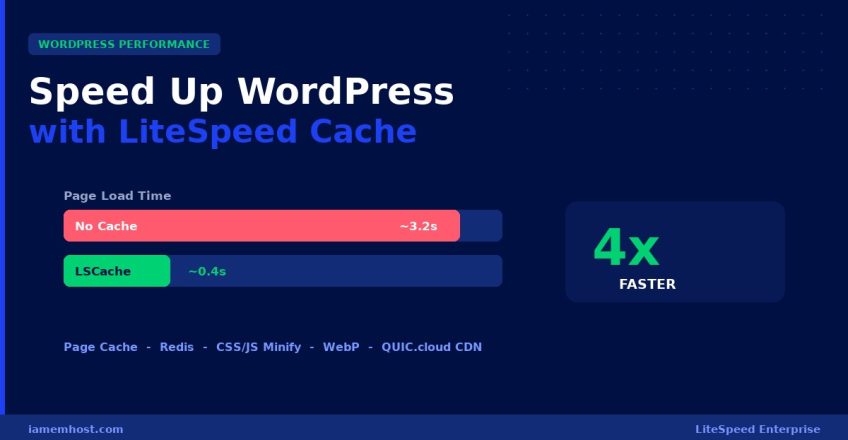

Page speed directly affects your Google rankings, bounce rate, and conversions. If your site runs on a LiteSpeed web server, the free LiteSpeed Cache (LSCache) plugin is the single most powerful optimisation you can make — it delivers server-level full-page caching that’s dramatically faster than PHP-based caching plugins like WP Super Cache or W3 Total Cache. This step-by-step guide shows you exactly how to configure it for maximum performance.
Why LiteSpeed Cache Beats Other Caching Plugins
Most caching plugins work at the PHP level — WordPress still has to load PHP to serve a “cached” page. LiteSpeed Cache works at the server level: cached pages are served directly by the LiteSpeed web server before PHP or MySQL are ever touched. The result is response times measured in milliseconds and the ability to handle traffic spikes that would crush a normal shared host.
| Caching Type | Where It Runs | Typical Speed Gain |
|---|---|---|
| No cache | Full PHP + MySQL every request | Baseline |
| WP Super Cache / W3TC | PHP-level (static HTML files) | 2–3x faster |
| LiteSpeed Cache (LSCache) | Server-level (in LiteSpeed) | Up to 4–10x faster |
Prerequisite: Your hosting must run LiteSpeed or OpenLiteSpeed. You can confirm by checking your response headers for a x-litespeed-cache entry, or simply ask your host. All IAMEM HOSTING WordPress plans run LiteSpeed Enterprise by default.
Step 1 — Install the LiteSpeed Cache Plugin
In your WordPress dashboard, go to Plugins → Add New, search for “LiteSpeed Cache”, install and activate it. (On IAMEM HOSTING WordPress plans it comes pre-installed and pre-configured.)
Step 2 — Enable Page Caching
Go to LiteSpeed Cache → Cache → [1] Cache and turn Enable Cache: ON. This single setting activates full-page caching. Recommended sub-settings:
- Cache Logged-in Users: OFF (logged-in users see live content)
- Cache Commenters: OFF
- Cache REST API: ON
- Cache Mobile: ON only if you serve a separate mobile theme
Step 3 — Enable Object Caching with Redis
Object caching stores the results of database queries in memory, so repeated queries (menus, widgets, options) skip MySQL entirely. Go to LiteSpeed Cache → Cache → [6] Object:
- Object Cache: ON
- Method: Redis (faster than Memcached for WordPress)
- Host:
localhostPort:6379
If you see “Connection Test Passed”, Redis is working. If Redis isn’t available on your host, ask support to enable it — it’s included on all IAMEM HOSTING WordPress plans.
Step 4 — Optimise CSS, JavaScript & HTML
Go to LiteSpeed Cache → Page Optimization. Enable these one at a time and test your site after each (some themes react differently):
- CSS Minify and CSS Combine — reduces file size and HTTP requests
- JS Minify and JS Combine — same for JavaScript (test carefully — can break sliders)
- Load CSS Asynchronously — eliminates render-blocking CSS
- Defer JS — improves Largest Contentful Paint (LCP)
- HTML Minify — strips whitespace from output
Tip: If a setting breaks your layout, turn it off and exclude the offending file rather than disabling the whole feature.
Step 5 — Optimise Images (Lazy Load + WebP)
Images are usually 60–70% of a page’s weight. Under Page Optimization → Media Settings:
- Lazy Load Images: ON — images load only as the visitor scrolls to them
- Lazy Load Iframes: ON
- Add Missing Sizes: ON — prevents layout shift (improves CLS)
Then go to Image Optimization and click Send Optimization Request. LiteSpeed’s free QUIC.cloud service compresses your images and generates next-gen WebP versions automatically.
Step 6 — Enable the QUIC.cloud CDN (Optional but Recommended)
Under CDN, enable QUIC.cloud CDN to serve cached pages and static assets from 80+ global edge locations. This is especially valuable if you have international visitors — it cuts latency by serving content from a server near each user. The free tier covers most small-to-medium sites.
Step 7 — Measure Your Results
Before-and-after testing proves the gains. Run your site through these free tools:
- Google PageSpeed Insights (pagespeed.web.dev) — check Core Web Vitals (LCP, CLS, INP)
- GTmetrix — view the waterfall and confirm cached pages load in under 1 second
- WebPageTest — measure Time to First Byte (target: under 200ms with LSCache)
Quick Settings Summary
| Feature | Setting | Impact |
|---|---|---|
| Page Cache | ON | Biggest single speed gain |
| Object Cache (Redis) | ON | Faster dynamic pages |
| CSS/JS Minify + Combine | ON (test) | Fewer, smaller requests |
| Lazy Load Images | ON | Faster initial load |
| WebP Images | ON | 30% smaller images |
| QUIC.cloud CDN | ON | Lower global latency |
Want LiteSpeed Cache, Redis, and WebP optimisation pre-configured out of the box? IAMEM HOSTING WordPress Hosting ships with the entire performance stack ready on day one — no manual setup required.