

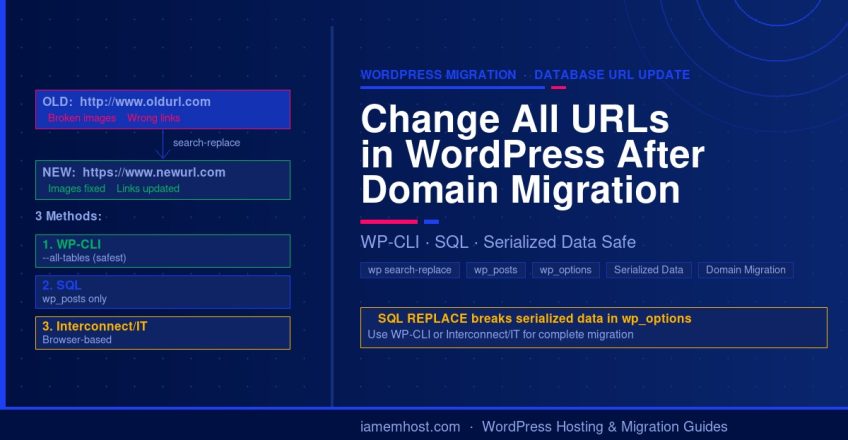

After migrating a WordPress site to a new domain or switching from HTTP to HTTPS, you will often find that images are broken, internal links still point to the old domain, and the media library shows old URLs. This happens because WordPress stores absolute URLs throughout the database — in post content, post meta, widget settings, and options — and a simple domain change in Settings does not update them.
This guide covers three methods to update all URLs across a WordPress database, from safest to most direct — including why a single SQL query is not enough.
Why a Single SQL UPDATE Is Not Enough
The most common mistake when doing a URL migration is running one UPDATE wp_posts query and considering the job done. WordPress stores data in PHP serialized format in many tables — particularly wp_options and wp_postmeta (used by Elementor, WooCommerce, and most page builders). A plain SQL REPLACE() on serialized data corrupts string length counters and breaks those records silently, causing widgets to disappear, Elementor pages to go blank, or theme options to reset.
Method 1: WP-CLI Search-Replace (Recommended — Handles Serialized Data)
If you have SSH access, WP-CLI is the safest and most complete method. It handles serialized data correctly, covers all tables, and provides a dry-run mode so you can preview changes before applying them:
# Dry run first — preview what will change without modifying anything
wp search-replace 'http://www.oldurl.com' 'https://www.newurl.com' --dry-run --all-tables

# Run the actual replacement across all tables
wp search-replace 'http://www.oldurl.com' 'https://www.newurl.com' --all-tables

# If migrating from www to non-www (or vice versa), run a second pass:
wp search-replace 'http://oldurl.com' 'https://www.newurl.com' --all-tables
After the replacement, flush your WordPress rewrite rules and cache:
wp rewrite flush
wp cache flush
Method 2: SQL Queries (Use Only for Non-Serialized Tables)
If WP-CLI is not available, SQL REPLACE() is safe to use on wp_posts (post content) and wp_postmeta where values are plain text. Do not use SQL REPLACE on wp_options or any table with serialized data — use the Interconnect/IT tool (Method 3) instead.
Log in to phpMyAdmin or MySQL CLI, select your WordPress database, and run:
-- Update post content (safe — plain text)
UPDATE wp_posts
SET post_content = REPLACE(post_content, 'http://www.oldurl.com', 'https://www.newurl.com');

-- Update post excerpt
UPDATE wp_posts
SET post_excerpt = REPLACE(post_excerpt, 'http://www.oldurl.com', 'https://www.newurl.com');

-- Update attachment / media GUIDs
UPDATE wp_posts
SET guid = REPLACE(guid, 'http://www.oldurl.com', 'https://www.newurl.com')
WHERE post_type = 'attachment';

-- Update postmeta (plain text values only — safe for image alt, custom fields)
UPDATE wp_postmeta
SET meta_value = REPLACE(meta_value, 'http://www.oldurl.com', 'https://www.newurl.com')
WHERE meta_value NOT LIKE 'a:%' AND meta_value NOT LIKE 'O:%';
Important: Replace wp_ with your actual table prefix if you have changed it from the default. Check your wp-config.php for the $table_prefix value.
Method 3: Interconnect/IT Search Replace Tool (Browser-Based, No SSH Needed)
The Interconnect/IT Search Replace DB script handles serialized data correctly and runs entirely in the browser — ideal when you have FTP/cPanel access but no SSH. Download it from interconnectit.com, upload it to your server root, run it, then delete it immediately after use (it has no authentication).
Tables That Must Be Updated
| Table | What It Stores | Safe for SQL REPLACE? |
|---|---|---|
wp_posts | Post/page content, GUIDs | ✅ Yes |
wp_postmeta | Custom fields, Elementor data | ⚠ Partial — skip serialized rows |
wp_options | Site URL, theme settings, widget data | ❌ No — use WP-CLI or Interconnect/IT |
wp_usermeta | User preferences, capabilities | ⚠ Rarely needed |
After the URL Change — Final Checklist
- Update Settings → General: WordPress Address (URL) and Site Address (URL)
- Update wp-config.php if you have hardcoded
WP_HOMEorWP_SITEURL - Flush permalinks: Settings → Permalinks → Save Changes
- Clear any caching plugin (W3 Total Cache, WP Super Cache, etc.)
- Check for mixed content (HTTP resources on HTTPS pages) using browser DevTools or whynopadlock.com

Bash Script to Alert When Exim Mail Queue Is Too High
Iamem Hosting