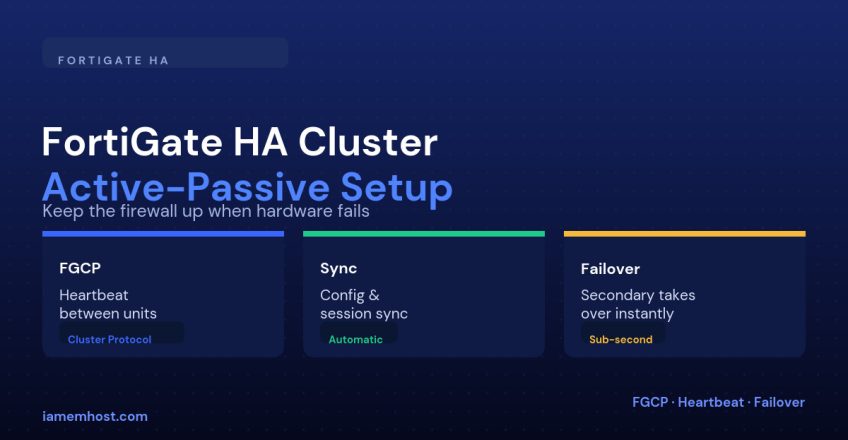

A FortiGate sitting alone at the network edge is exactly as reliable as that one piece of hardware. FortiGate Clustering Protocol (FGCP) pairs two identical FortiGate units into an active-passive HA cluster: one unit actively handles traffic while the second stays synchronized and silent, ready to take over within seconds if the active unit fails.
Requirements Before You Start
| Requirement | Detail |
|---|---|
| Two FortiGate units, same model | FGCP requires matching hardware models |
| Same FortiOS firmware version on both | Mismatched firmware blocks cluster formation |
| A dedicated heartbeat interface (or two, for redundancy) | Direct cable between units, not through a switch, for the cleanest heartbeat signal |
| Identical licensing (FortiGuard, VDOMs if used) | Both units need the same feature set active |
Step 1: Configure HA Settings on the First Unit
System > HA
  Mode: Active-Passive
  Device Priority: 200        (higher = preferred as primary)
  Group Name: prod-cluster
  Password: (shared cluster password, identical on both units)
  Heartbeat Interface: port10 (dedicated), enable
  Heartbeat Interface Priority: 50
Step 2: Configure the Second Unit
Identical Group Name and Password, but a lower Device Priority so it starts as the subordinate/passive unit:
System > HA
  Mode: Active-Passive
  Device Priority: 100        (lower than the first unit)
  Group Name: prod-cluster
  Password: (same shared password)
  Heartbeat Interface: port10, enable
Step 3: Cable and Let Them Form a Cluster
Connect the designated heartbeat ports directly between the two units, and connect matching WAN/LAN interfaces on both to the same physical switches. Once both units see each other’s heartbeat with a matching group name and password, they form a cluster automatically and the higher-priority unit becomes primary.
get system ha status
# Shows cluster members, current primary, and sync status
What Gets Synchronized Automatically
| Synchronized | Not synchronized |
|---|---|
| Firewall policies, objects, VPN configuration | Interface-specific settings like an individual management IP, if configured to differ intentionally |
| Session table (for supported traffic types) | Local logs stored only on each unit unless a central FortiAnalyzer/syslog target is configured |
| Routing table | HA-specific settings like device priority, which must legitimately differ between units |
Verifying Failover
# From the primary unit, force a failover for testing:
execute ha manage 1
# or physically disconnect the primary's WAN/heartbeat to simulate real failure

# On the surviving unit:
get system ha status
# Should now show itself as primary within seconds
Test this deliberately, during a maintenance window, before you need it to work during an actual hardware failure — a cluster that’s misconfigured (mismatched firmware, wrong heartbeat priority, asymmetric cabling) often still looks fine under get system ha status until the moment it’s actually tested.
Common Mistakes
| Mistake | Consequence |
|---|---|
| Different firmware versions on the two units | Cluster fails to form, or forms unstably |
| Heartbeat interface routed through a switch instead of direct cable | Heartbeat loss under switch congestion triggers unnecessary failovers |
| Only one heartbeat interface configured | No redundancy if that single heartbeat link fails independently of the whole unit |
| Never testing a forced failover | First real failover happens during an actual outage, with no confidence it works |
Conclusion
FGCP active-passive HA is FortiGate’s answer to the same problem CARP solves on pfSense: one firewall handling traffic, a synchronized twin ready to take over, and a dedicated heartbeat link deciding when that happens. Match firmware and models exactly, dedicate real heartbeat interfaces rather than routing them through a shared switch, and actually force a test failover before you need it to work for real.