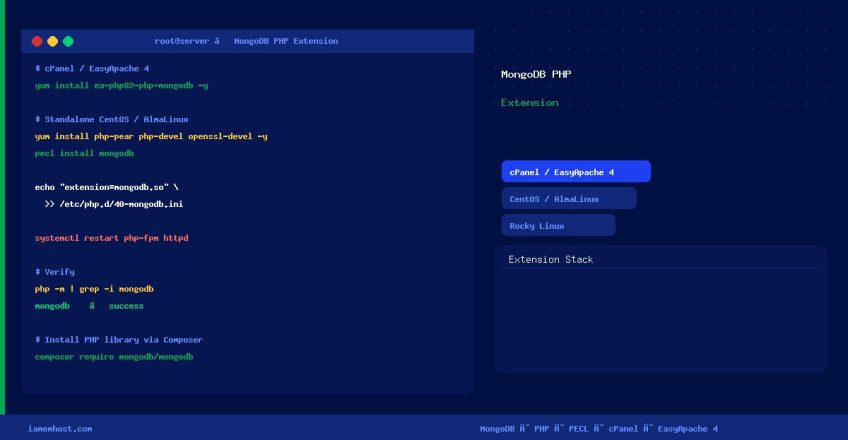

The MongoDB PHP Extension (mongodb) allows PHP applications to connect to and query a MongoDB database. This guide covers installation on standalone CentOS/AlmaLinux servers and on cPanel/WHM servers using EasyApache 4 — the two most common hosting environments.
Note: There are two MongoDB drivers for PHP. The modern driver is mongodb (PECL). The old mongo extension is deprecated and unsupported since PHP 7. Always install the mongodb extension.
Method 1: cPanel / WHM Servers (EasyApache 4)
On cPanel servers, use EasyApache 4 to install the MongoDB extension for your PHP version. This avoids manually editing php.ini and handles the configuration automatically.
Option A — WHM GUI
- Log in to WHM as root
- Navigate to Software → EasyApache 4
- Click Customize on your current profile
- Select the PHP Extensions tab
- Search for mongodb and enable it for your PHP version(s)
- Click Review → Provision to install
Option B — Command Line (faster)
# Replace 81 with your PHP version (80, 81, 82, 83)
yum install ea-php81-php-mongodb -y

# Verify it installed
/opt/cpanel/ea-php81/root/usr/bin/php -m | grep -i mongodb
No Apache or PHP-FPM restart is required — EasyApache handles the configuration file automatically.
Method 2: Standalone CentOS / AlmaLinux / Rocky Linux Server
Step 1 — Install Prerequisites
# CentOS 7 / RHEL 7
yum install php-pear php-devel openssl-devel cyrus-sasl-devel gcc -y

# AlmaLinux 8 / Rocky Linux 8 / RHEL 8+
dnf install php-pear php-devel openssl-devel cyrus-sasl-devel gcc -y
Step 2 — Install the MongoDB Extension via PECL
pecl install mongodbPECL will download and compile the extension from source. Accept the default options when prompted.
Step 3 — Enable the Extension in PHP
# For the system PHP (Apache mod_php)
echo "extension=mongodb.so" >> /etc/php.ini

# For PHP-FPM — create a dedicated config file (recommended)
echo "extension=mongodb.so" > /etc/php.d/40-mongodb.ini

# For multiple PHP versions managed via SCL or remi repo
echo "extension=mongodb.so" >> /etc/opt/remi/php81/php.ini
Step 4 — Restart the Web Server and PHP-FPM
# Apache with mod_php
systemctl restart httpd

# Nginx + PHP-FPM
systemctl restart php-fpm
systemctl restart nginx

# Apache + PHP-FPM
systemctl restart php-fpm
systemctl restart httpd
Step 5 — Verify the Extension is Loaded
# Check from CLI
php -m | grep -i mongodb

# Expected output:
# mongodb

# Check via phpinfo (create a temp file)
echo "" > /var/www/html/phpinfo.php
# Visit: http://your-server/phpinfo.php and search for "mongodb"
# Remove the file after checking!
rm /var/www/html/phpinfo.php
Step 6 — Install the MongoDB PHP Library (Recommended)
The PECL extension provides the low-level driver. For application development, install the MongoDB PHP Library via Composer — it provides a clean, high-level API on top of the extension:
composer require mongodb/mongodbQuick Connection Test
Once both the extension and library are installed, test the connection to your MongoDB server:
listDatabases() as $db) {
    echo $db->getName() . "n";
}

echo "MongoDB connection successful!n";
Troubleshooting
| Error | Cause | Fix |
|---|---|---|
pecl: command not found | PEAR/PECL not installed | yum install php-pear -y |
Cannot find openssl during compile | OpenSSL dev headers missing | yum install openssl-devel -y |
extension mongodb.so not found | Wrong path in php.ini | Run pecl list to find actual path; use extension=mongodb (no .so) on PHP 7.2+ |
| Extension loads in CLI but not web | Different php.ini for web vs CLI | Run php --ini and php-fpm --ini to find each config file |
| Connection refused to MongoDB | MongoDB not running or wrong port | systemctl start mongod; verify port 27017 is open |