

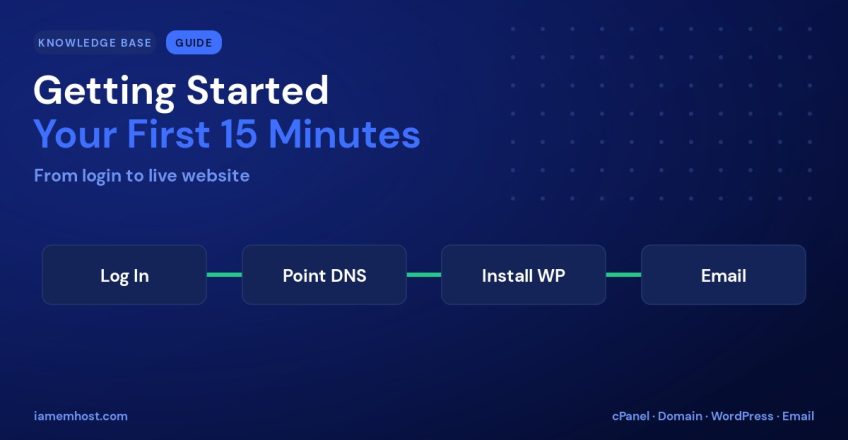

Welcome to IAMEM Hosting! Whether you’re launching your first website or moving an existing one, getting set up is quick and straightforward. This guide walks you through everything you need to do in your first 15 minutes — from logging in to seeing your site go live.
Step 1: Log In to cPanel
After signing up, you’ll receive a welcome email with your account details and a link to cPanel — your hosting control panel. cPanel is where you’ll manage everything: files, email, databases, domains, and one-click app installs. Log in and take a quick look around.
Step 2: Point Your Domain to IAMEM Hosting
For your domain to load from our servers, it needs to point to our nameservers. Log in to wherever you registered your domain and update the nameservers to the ones listed in your welcome email (they look like ns1.iamemhost.com / ns2.iamemhost.com).
DNS changes can take a little time to propagate worldwide — usually within a few hours. You can keep working in cPanel in the meantime.
Step 3: Install WordPress (or Your App) in One Click
- In cPanel, open Softaculous Apps Installer.
- Choose WordPress (or another app) and click Install.
- Set your site title, admin username, and a strong password.
- Click Install — your site is ready in under a minute.
Step 4: Set Up Your Email
Create a professional address like you@yourdomain.com:
- In cPanel, open Email Accounts and click Create.
- Choose your address and password.
- Access your inbox any time by visiting
yourdomain.com/webmail, or connect it to Outlook, Gmail, or your phone.
Step 5: Confirm Your Free SSL
Your site automatically receives a free SSL certificate, so it loads securely over https://. You can confirm this in cPanel under SSL/TLS Status. Once your domain has propagated, your padlock will be active with no extra steps.
Quick-Start Checklist
| Task | Where |
|---|---|
| Log in to cPanel | Link in welcome email |
| Point domain nameservers | Your domain registrar |
| Install WordPress | Softaculous in cPanel |
| Create email account | Email Accounts in cPanel |
| Verify SSL | SSL/TLS Status in cPanel |
We’re Here to Help
That’s the essentials — in about 15 minutes you’ve got a secure site, professional email, and a domain pointed to fast, reliable hosting. If you get stuck at any point, our support team is available 24/7 by ticket and live chat. Welcome aboard, and happy building!