

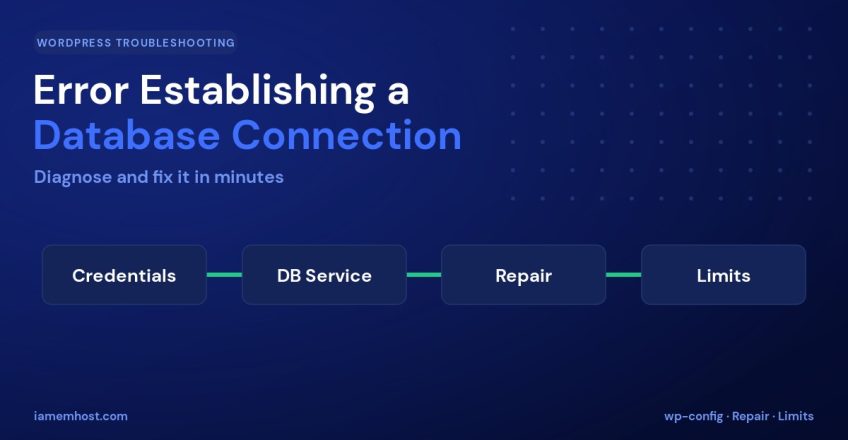

Few WordPress messages cause as much panic as “Error Establishing a Database Connection.” Your entire site — front end and admin dashboard — goes blank, replaced by that single line. The good news: it almost always comes down to a handful of causes, and most are fixable in minutes. This guide walks through what the error means and how to diagnose and fix it, step by step.
What the Error Actually Means
WordPress stores all your content — posts, pages, settings, users — in a MySQL/MariaDB database. On every page load it connects to that database using credentials in wp-config.php. This error appears when WordPress cannot make that connection. The cause is usually one of: wrong credentials, a stopped database server, a corrupted database, or the server hitting a resource limit.
Step 1: Check Your Database Credentials
The most common cause is incorrect details in wp-config.php — often after a migration or a host change. Open the file in your site root and verify these four lines:
define( 'DB_NAME', 'your_database' );
define( 'DB_USER', 'your_db_user' );
define( 'DB_PASSWORD', 'your_password' );
define( 'DB_HOST', 'localhost' );
Confirm each value against your hosting control panel. On most shared hosts DB_HOST is localhost, but some use a specific hostname or IP — check your provider’s documentation if unsure.
Step 2: Test Whether the Database Server Is Running
If credentials are correct, the database service itself may be down. On a VPS or dedicated server, check and restart it:
systemctl status mariadb     # or mysqld
systemctl restart mariadb

# Verify you can log in with the WordPress credentials
mysql -u your_db_user -p your_database
If the login fails here, the problem is the credentials or user permissions, not WordPress. On shared hosting you can’t restart MySQL yourself — if the server is down, contact support.
Step 3: Repair a Corrupted Database
If the admin area shows a slightly different message such as “One or more database tables are unavailable,” your database may be corrupted. WordPress has a built-in repair tool. Add this line to wp-config.php:
define( 'WP_ALLOW_REPAIR', true );Then visit https://example.com/wp-admin/maint/repair.php and run the repair. Remove the line afterwards — leaving it exposes the tool publicly. You can also repair from the command line:
mysqlcheck --repair --user=your_db_user -p your_databaseStep 4: Rule Out a Server Resource Limit
If the error is intermittent — the site works, then breaks under traffic — the database is likely hitting a limit: too many connections, exhausted memory, or a max-user-connections cap on shared hosting. Check the MySQL error log and current connections:
tail -50 /var/log/mysql/error.log
mysql -e "SHOW STATUS LIKE 'Max_used_connections';"
Fixes include adding an object cache (Redis), tuning max_connections, or upgrading the plan if you’ve genuinely outgrown it.
Quick Diagnostic Checklist
| Symptom | Likely cause | Fix |
|---|---|---|
| Broke right after migration | Wrong credentials / DB_HOST | Correct wp-config.php |
| Whole site down, server too | MySQL service stopped | Restart MariaDB/MySQL |
| “Tables unavailable” | Corrupted database | Run repair tool |
| Breaks only under traffic | Connection/resource limit | Cache, tune, or upgrade |
Conclusion
“Error Establishing a Database Connection” looks catastrophic but is usually a quick fix. Work the list in order: verify credentials in wp-config.php, confirm the database server is running, repair the database if needed, and rule out resource limits. Keep a recent backup and the credentials handy, and you’ll have the site back online in minutes.