

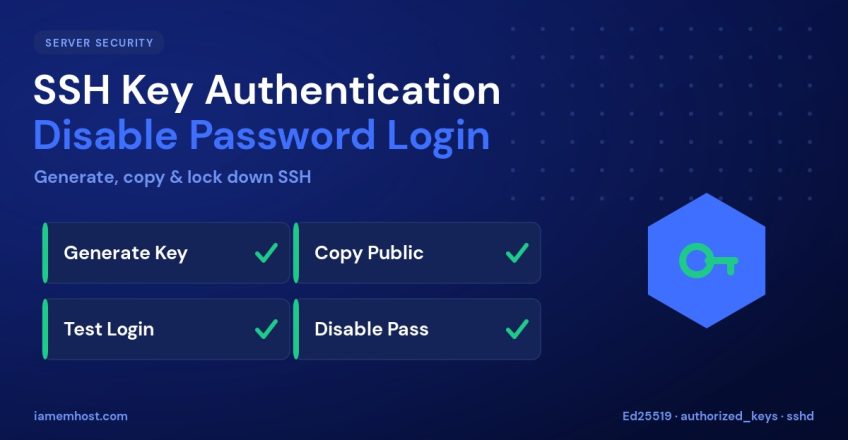

Passwords are the weakest link in server security — they can be guessed, brute-forced, phished, or reused. SSH key authentication replaces them with a cryptographic key pair that is effectively impossible to brute-force, and it’s more convenient too: no password to type on every login. This guide shows you how to generate an SSH key pair, install it on your server, and safely disable password logins for good.
How SSH Keys Work
SSH key authentication uses a matched pair of files:
- Private key — stays on your computer, never shared. Think of it as the physical key.
- Public key — copied to the server. Think of it as the lock.
When you connect, the server uses the public key to issue a challenge that only the matching private key can answer. Because the private key never travels across the network, there’s nothing for an attacker to intercept or guess.
Step 1: Generate a Key Pair
On your local machine (Linux, macOS, or Windows with OpenSSH), generate a modern Ed25519 key:
ssh-keygen -t ed25519 -C "you@example.com"Press Enter to accept the default location (~/.ssh/id_ed25519) and set a passphrase when prompted — this encrypts the private key so it’s useless if your laptop is stolen. This creates two files: id_ed25519 (private) and id_ed25519.pub (public).
Step 2: Copy the Public Key to Your Server
The easiest method is ssh-copy-id, which appends your public key to the server’s ~/.ssh/authorized_keys:
ssh-copy-id user@your-server-ipIf ssh-copy-id isn’t available, do it manually:
cat ~/.ssh/id_ed25519.pub | ssh user@your-server-ip \
  "mkdir -p ~/.ssh && chmod 700 ~/.ssh && cat >> ~/.ssh/authorized_keys && chmod 600 ~/.ssh/authorized_keys"
Now test it: ssh user@your-server-ip should log you in using the key (you’ll be asked for your key passphrase, not the server password).
Step 3: Disable Password Authentication
Only do this once key login is confirmed working — otherwise you can lock yourself out. Edit the SSH daemon config:
# /etc/ssh/sshd_config
PasswordAuthentication no
PubkeyAuthentication yes
PermitRootLogin prohibit-password
ChallengeResponseAuthentication no
Reload SSH to apply — and keep your current session open while you test a new one:
sudo systemctl reload sshd
# In a SECOND terminal, confirm you can still log in before closing the first.
Hardening Tips
| Setting | Benefit |
|---|---|
| Change the default SSH port | Cuts automated scanner noise |
AllowUsers directive | Limits who can log in at all |
| Fail2Ban on SSH | Bans IPs that probe repeatedly |
| Use an SSH agent | Type your passphrase once per session |
Conclusion
SSH keys give you stronger security and a smoother workflow. Generate an Ed25519 key with a passphrase, copy the public key to your server, verify key login works, then disable password authentication. Add Fail2Ban and an AllowUsers rule on top, and remote access to your server becomes one of the hardest things on it to attack.