
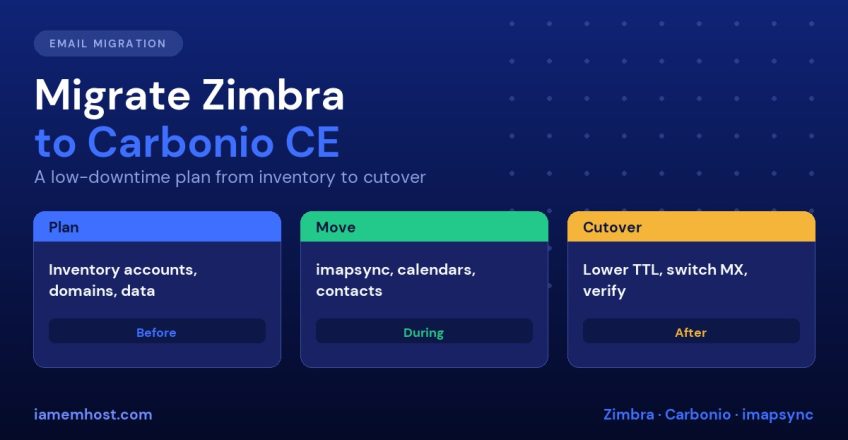

Many Zimbra administrators are looking at Carbonio CE because it is actively developed, has a modern interface, and comes from the Zextras team that built many of Zimbra’s add-ons. Moving is very doable, but it is a migration, not an in-place upgrade: you build a new Carbonio server and move accounts, mail, calendars and contacts across. This guide gives a practical plan to migrate Zimbra to Carbonio with minimal downtime, and tells you where Zextras’ own documentation helps and where you have to fill the gaps yourself.
Before you start, read our overview of self-hosted email platforms to confirm Carbonio is the right target, and our Carbonio CE installation guide to build the destination.
What the Official Migration Page Covers (and Does Not)
Zextras’ documentation describes a generic migration procedure for moving to Carbonio from another system: provisioning from an LDIF file, mail through IMAP synchronisation, calendars as ICS files and contacts as CSV. It lists what can be migrated: domains, classes of service, accounts, mail and folders, distribution lists, signatures, calendars and contacts.
It also states plainly that it does not explain how to export configuration and data from the source system, so for a Zimbra source you must do that part yourself. At the time of writing we found no separate, official Zimbra-to-Carbonio migration tool in the documentation. Plan for the manual route described below, and treat anything automatic with caution until you have tested it.
Step 1: Inventory Before You Migrate Zimbra to Carbonio
Collect the facts you need to rebuild on Carbonio. As the zimbra user on the old server:
su - zimbra
zmprov -l gad                          # domains
zmprov -l gaa | sort                   # all accounts
zmprov -l gaaa                         # admin accounts
zmprov gac                             # classes of service
zmprov gadl                            # distribution lists (all domains)
zmcontrol -v                           # Zimbra version
du -sh /opt/zimbra/store               # mailbox data size
Record the number of mailboxes, total data size, the largest mailboxes, quotas, aliases, forwarding rules, shared folders and delegated access. Note integrations that must be rebuilt: LDAP/Active Directory authentication, mobile sync, Outlook connectors, backups, zimlets, mailing-list software and relays that send through this server.
Also check which domains use their own SSL certificates, which outgoing IPs are used (Zimbra: assign a dedicated outgoing SMTP IP per domain) and what SPF, DKIM and DMARC records exist.
Step 2: Size and Build the Carbonio Server
Carbonio CE’s documented minimums are 4 CPU cores and 16 GB RAM, with more recommended, plus disk for all mailboxes with headroom (for example, the old store size plus 30 to 50 percent). Build it on Ubuntu 22.04 or 24.04 (or RHEL 8 or 9) following our installation guide.
Use a temporary host name such as carbonio-new.example.com while you test, and consider a separate test domain for your first trial. Zextras’ migration page recommends using a local domain (for example carbonio.local) during migration to avoid LDAP conflicts, then switching to the real domain at cutover. Do the post-installation work in our Carbonio CE setup checklist before real users arrive.
Step 3: Recreate Domains and Accounts
You have two options:
| Method | Good for | Notes |
|---|---|---|
| Create accounts manually or by script on Carbonio | Up to a few hundred accounts | Safest. Use the Admin Panel or carbonio prov commands, and import a CSV of users |
LDIF provisioning (slapadd) | Large numbers of accounts | Documented by Zextras but advanced. Only attempt after a full test, and keep a backup of the LDAP data |
For most small and medium installations, scripted account creation from the account list you exported in step 1 is simplest and gives you a clean result. You must set a temporary password for each account, because users’ passwords cannot normally be read from Zimbra in clear text. Aliases, distribution lists and quotas need to be created as well. Verify the result by comparing counts of accounts and aliases between old and new servers.
Step 4: Migrate the Mailbox Data with imapsync
The official procedure uses imapsync, which copies mail folder by folder over IMAP and can run many times, copying only what changed. That makes it ideal for a low-downtime migration: do a big first pass days earlier and a short final pass at cutover.
You need either each user’s password or a master/admin authentication method on the source. The simplest approach on Zimbra is to use an admin account with an application-specific approach to log in as each user, or to temporarily set known passwords. Check what your Zimbra version supports, and handle credentials securely.
imapsync \
  --host1 zimbra.example.com --user1 user@example.com --password1 'OLD_PASS' --ssl1 \
  --host2 carbonio-new.example.com --user2 user@example.com --password2 'NEW_PASS' --ssl2 \
  --automap --nofoldersizes --useuid
Run it from a separate migration host with good bandwidth, use a small number of parallel jobs and look at the logs for skipped or failed folders. The imapsync project also provides a Docker image if you prefer not to install it. Always run a dry run (--dry) on a test account first.
Typical timings: tens of gigabytes per hour is normal over a good network. Large mailboxes with hundreds of thousands of messages take longer, so start them first.
Step 5: Migrate Calendars and Contacts
IMAP only moves mail. Calendars and contacts must be moved separately:
- Calendar: export each user’s calendar as ICS and import it into Carbonio
- Contacts: export as CSV and import into Carbonio
Zextras documents the export and import for the Carbonio side using the carbonio command-line tool, using a REST URL of the form /Calendar?fmt=ics and /Contacts?fmt=csv&csvfmt=thunderbird-csv. Because these are per-user operations, script them and test with a pilot user first. Users can also export and re-import their own calendars and contacts from the web interface when there are only a few.
Also plan for:
- Shared folders and delegation: recreate them manually and ask owners to verify
- Filters and signatures: export and recreate, or ask users to re-create them
- Tasks, notes and documents: check whether you need them, since they do not travel over IMAP
- Mobile devices: users will need to re-add their account to phones and tablets
Step 6: Pilot with a Small Group
Pick five to ten users, ideally including someone with a large mailbox and a heavy calendar user. Have them confirm mail, folders, calendar events, contacts, aliases and sending. Fix what is missing before scaling up. Update your runbook with the exact commands that worked.
Step 7: Prepare and Run the Cutover
- Lower the TTL on the MX record and the mail host A record to 300 seconds at least 24 to 48 hours before cutover
- Announce a maintenance window and tell users how to sign in to the new webmail
- Do a final imapsync pass for all accounts, preferably while the old server is still receiving mail
- Change DNS: point the MX (and webmail/IMAP/SMTP host names) to the new server, and update SPF to include the new IP
- Keep the old server running and receiving for a few days, because some senders cache DNS longer than the TTL. Run another imapsync pass to catch late mail
- Publish the DKIM key from the new server (see our setup checklist), update reverse DNS if the IP changed and warm up gradually if it is a new address (IP warm-up plan)
- Move the real certificate and host name onto the new server
Step 8: Verify and Decommission
- Send and receive tests from internal and external addresses, and check SPF, DKIM and DMARC results in headers
- Compare mailbox item counts for a sample of users before and after
- Confirm outbound mail flows from every application that relayed through the old server
- Confirm that backups of the new server run and that you have tested a restore (Carbonio backup and disaster recovery)
- Keep the old server, powered off or isolated, for at least 30 days before deleting anything
Risks and How to Reduce Them
| Risk | Mitigation |
|---|---|
| Users’ passwords unknown | Set temporary passwords and send secure instructions, or integrate an external directory |
| Missing calendar or contact data | Pilot first and script ICS/CSV exports |
| Mail lost during cutover | Low TTL, final sync, keep the old server receiving |
| Deliverability drop | Correct SPF, DKIM, DMARC and PTR before switching |
| Feature gaps (zimlets, integrations) | List them in the inventory and find replacements before cutover |
| Edition differences | Check the Carbonio edition comparison for the features you rely on |
Need Help?
We can build and migrate to Carbonio for you; see our Carbonio CE VPS servers and managed server services.
Frequently Asked Questions
Can I upgrade Zimbra to Carbonio in place?
No. The documented route is to build a new Carbonio server and migrate data to it. Plan for a parallel system with a DNS cutover.
Does Zextras provide a Zimbra-specific migration tool?
We could not find one in the current official documentation. Zextras describes a general procedure with LDIF, IMAP sync, ICS and CSV, and does not cover exporting from the source system.
How long does a migration take?
It depends on mailbox sizes and bandwidth. The first imapsync pass can take hours or days, while the final cutover pass is usually short.
Will users keep their passwords?
Not automatically. Plan for new or temporary passwords, or connect an external authentication source.
Do I need to keep the old Zimbra server?
Yes, for at least a few days after cutover to catch delayed mail, and ideally 30 days in a powered-off state as a safety net.