
Automated backups running quietly in the background are great — right up until you want a backup right now, taken at this exact moment, before you touch something risky. A manual backup gives you a known-good copy you control directly: you choose the moment, you hold the file, and you don’t have to trust that last night’s automated job actually completed cleanly. cPanel gives you everything you need to do this yourself in a few minutes, with no extra software.
Why Take a Manual Backup
- Right before a major plugin or theme update
- Before migrating to a new host or server
- Before editing theme or plugin code directly
- Before a risky database change — a bulk search-replace, a manual SQL edit
- Any time you want a copy stored off-server, on your own machine
What You’ll Need
Just your cPanel login and a few minutes. For larger sites, check your space usage first under cPanel ’s Disk Usage — a multi-gigabyte public_html folder will take longer to compress and download, and you’ll want enough free space on your own device to hold the download.
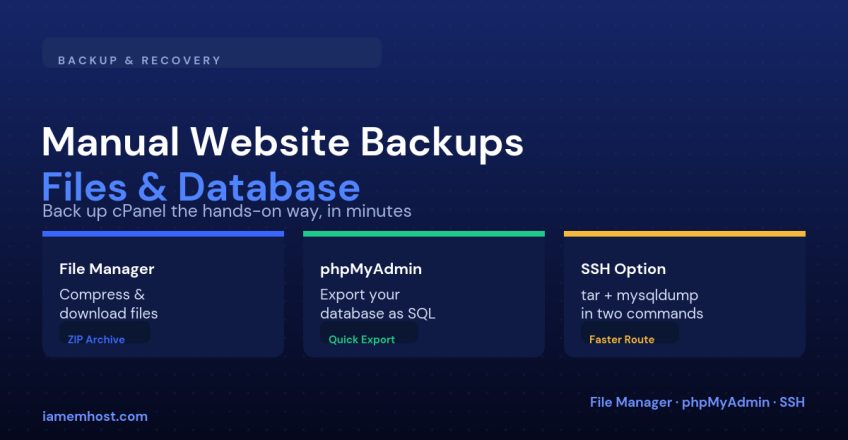
Step 1: Back Up Your Website Files with File Manager
- Log in to cPanel and open File Manager under the Files section.
- Navigate to the folder you want to back up — usually
public_htmlfor your main site, or the specific subfolder if you’re backing up an addon domain. - Click Select All in the toolbar to highlight everything in that folder.
- Right-click the selection (or use the toolbar) and choose Compress.
- Choose Zip Archive (the most portable option), give it a clear name like
website-backup-2026-10-01.zip, and click Compress Files. - Once it’s built, select the new archive and click Download to save it to your own computer.
Tip: delete the archive from the server once the download finishes. A multi-gigabyte zip sitting in public_html quietly eats into your disk quota if you forget it — and because it lives inside your web root, it’s technically reachable by anyone who guesses its exact filename until you remove it.
Step 2: Back Up Your Database with phpMyAdmin
- From the main cPanel dashboard, open phpMyAdmin under the Databases section.
- In the left-hand sidebar, click the name of the database you want to back up.
- Click the Export tab at the top.
- Leave Quick export selected with SQL as the format — this is the right choice for a straightforward full backup. Switch to Custom only if you need structure-only, data-only, or specific tables.
- Click Go (or Export) and the
.sqlfile downloads directly to your computer.
If your account has more than one database and you’re not sure which belongs to which site, open that site’s wp-config.php (or equivalent config file) and check the DB_NAME value — it’s the fastest way to confirm you’re exporting the right one.
A Faster Alternative: Backing Up via SSH
If your plan includes SSH access, both steps above collapse into two commands — genuinely useful once you’re comfortable with a terminal, since it skips the browser upload/download round trip entirely:
# Files
tar -czf website-backup-$(date +%F).tar.gz public_html

# Database (prompts for the password rather than exposing it in the command)
mysqldump -u dbuser -p database_name > database-backup-$(date +%F).sql
Pull both files to your own machine afterward with scp, and remove them from the server the same way you would the zip from File Manager.
Restoring From a Manual Backup
| What you’re restoring | How |
|---|---|
| Files | Upload the archive via File Manager, select it, and choose Extract — or on SSH, tar -xzf website-backup-2026-10-01.tar.gz |
| Database | phpMyAdmin → select the database → Import tab → choose the .sql file → Go |
Manual vs Automated Backups
| Manual (File Manager / phpMyAdmin / SSH) | Automated | |
|---|---|---|
| When it runs | Only when you remember to do it | On a fixed schedule, without you thinking about it |
| Best for | A known-good point right before a risky change | Ongoing protection against the unexpected |
| Where it’s kept | Wherever you choose to save the download | Managed retention, typically off-server |
The two aren’t a replacement for each other — every IAMEM Hosting plan already includes free daily automated backups for exactly the scenario a manual backup can’t cover: the day you forget to take one. Use the steps above for the moment right before you make a change you’d hate to redo.
Conclusion
A manual backup takes a few minutes and costs nothing — compress and download your files in File Manager, export your database in phpMyAdmin, or collapse both into two commands over SSH if you have it. Make it a habit before any update, migration, or code change that would be painful to undo, and you’ll never find yourself needing a backup that doesn’t exist.