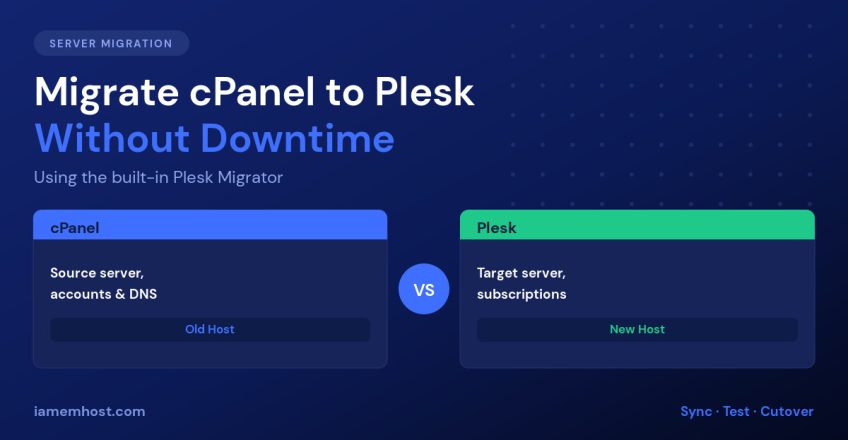

Moving a server full of accounts from cPanel to Plesk sounds like a weekend of misery, but Plesk ships a purpose-built tool for exactly this job. The Plesk Migrator extension connects to your cPanel server over SSH, reads the accounts, recreates them as Plesk subscriptions, and copies files, databases, mail and DNS — and it can re-sync changed content afterwards, which is what makes a genuinely low-downtime cutover possible. Here’s the full process.
What Plesk Migrator Actually Moves
| Migrated automatically | Needs manual attention |
|---|---|
| Domains, subdomains and add-on domains | Custom Apache/Nginx directives |
| Website files and permissions | Third-party cPanel plugins |
| MySQL/MariaDB databases and users | Cron jobs using cPanel-specific paths |
| Mailboxes, aliases, forwarders and mail content | Custom PHP handlers or non-standard PHP builds |
| DNS zones | SSL certificates from paid CAs (re-issue or re-upload) |
| FTP accounts and PHP version per domain | .htaccess rules relying on Apache-only modules |
Plesk runs Nginx in front of Apache by default. Most .htaccess files keep working because Apache is still there — but if you switch a domain to Nginx-only for speed, those rules stop applying and need translating.
Before You Start
- Plesk is installed, licensed and updated on the target server, with enough disk for everything you’re importing.
- You have root SSH access to the cPanel source server, ideally by key.
- The target can reach the source on port 22 (and 2083 if you use the cPanel API method).
- PHP versions the sites use are installed on Plesk — Tools & Settings » Updates » Add Components.
- Lower your DNS TTL to 300 seconds at least 24 hours before cutover. This is the single most important step for a fast switchover, and the one most often forgotten.
Step 1: Install the Migrator Extension
In Plesk go to Extensions » Extensions Catalog, search for Plesk Migrator and install it. Or from the shell:
plesk bin extension --install panel-migrator
plesk bin extension --list | grep -i migrator
Step 2: Create the Migration and Connect to cPanel
Open Tools & Settings » Migration & Transfer Manager and click Start a New Migration. Choose cPanel as the panel type and supply:
- Source server IP or hostname
- SSH port (22 unless you changed it) and
rootcredentials or private key - The target IP addresses on the Plesk server to assign to migrated subscriptions
Test the connection first — the migrator does a short handshake and reports firewall or authentication problems immediately, which is far better than discovering them 40 GB into a transfer.
Step 3: Select Subscriptions and Run the Pre-Migration Check
The migrator lists every cPanel account it found. Start with two or three low-risk accounts, not all 200 — you want to discover problems on a site nobody will miss.
Before transferring, it runs a pre-migration check and reports issues such as a missing PHP version, unsupported database engines, insufficient disk space, or a domain that already exists on the target. Resolve every warning here. A warning ignored at this stage becomes a broken site later.
Step 4: Transfer, Then Re-Sync
Start the migration. Files and databases copy over rsync/SSH, so the first pass takes as long as the data requires. When it completes, the migrator shows a per-subscription report with any warnings.
Now the useful part: you can re-run the sync. Because the source is still live and serving traffic, run a second sync immediately before cutover to copy anything that changed — new orders, new uploads, new mail. The second pass only transfers deltas, so it takes minutes rather than hours. This is what keeps the actual downtime near zero.
# Watch the migration log while it runs
tail -f /usr/local/psa/var/modules/panel-migrator/sessions/*/main.log
Step 5: Test Everything Before Touching DNS
Point your own machine at the new server by editing your local hosts file — the rest of the world still hits the old one:
# Linux/macOS: /etc/hosts   |   Windows: C:\Windows\System32\drivers\etc\hosts
203.0.113.50   example.com www.example.com
Then verify, on every migrated site: the homepage renders, a database-driven page loads, logging in works, an image uploads, a contact form sends mail, HTTPS is valid, and cron jobs are present with correct paths.
Step 6: Cut Over and Clean Up
- Run one final re-sync of the subscriptions you’re switching.
- Update the A/AAAA records (or nameservers) to the Plesk server. With a 300-second TTL, most visitors move within five minutes.
- Issue fresh Let’s Encrypt certificates in Plesk once DNS resolves to the new IP.
- Keep the old cPanel server running, read-only, for 7–14 days. Mail delivered to the old MX during propagation still needs collecting.
- Re-check SPF, DKIM and DMARC — the sending IP changed, and this is the most common post-migration problem.
- Confirm backups are configured and running on the new server before you cancel the old one.
Common Problems and Fixes
| Symptom | Cause and fix |
|---|---|
| Migration fails at connection | SSH key/password wrong, or the source firewall blocks the target IP. Whitelist it in CSF. |
| Site loads but shows a database error | DB user password not carried over; reset it in Plesk and update wp-config.php. |
| 500 error after migration | Wrong PHP version selected for the domain, or an .htaccess directive needing a module that isn’t loaded. |
| Mail going to spam | SPF still lists the old server IP. Update DNS and re-sign DKIM in Plesk. |
| Permissions errors on uploads | Run plesk repair fs -y to reset ownership and permissions. |
Conclusion
Plesk Migrator turns a cPanel-to-Plesk move into a repeatable process rather than a gamble. Lower your DNS TTL a day ahead, migrate a few test accounts first, fix every pre-migration warning, verify each site through your hosts file, then re-sync and switch DNS. Keep the old server read-only for a fortnight and re-check your mail authentication records — do that, and the migration is invisible to your visitors.