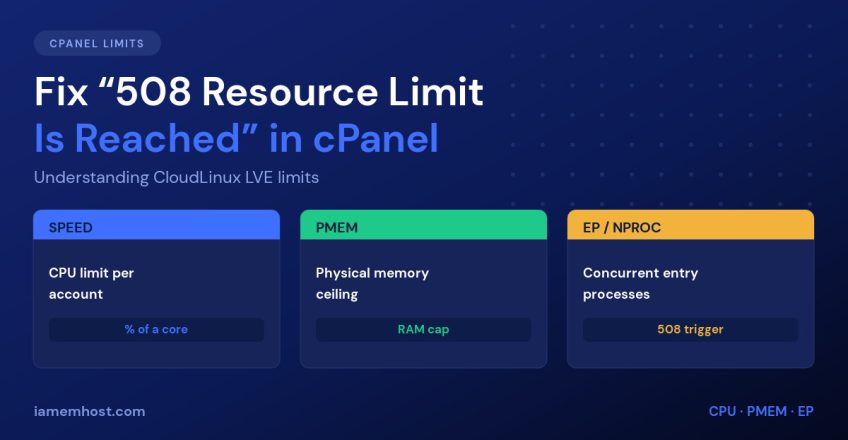

Few errors frustrate site owners more than “508 Resource Limit Is Reached”. The site was fine a minute ago, nothing changed, and now visitors get a blank error page — then it clears on its own. A 508 isn’t a bug in your code and it isn’t downtime. It means your hosting account momentarily used more of a resource than its CloudLinux LVE limit allows, and the kernel stopped it to protect everyone else on the server. This guide explains which limit you hit, how to prove it, and how to fix it.
What the 508 Error Actually Means
On a shared or reseller cPanel server running CloudLinux, every account is placed inside a Lightweight Virtual Environment (LVE) — a cage that caps CPU, memory, disk I/O and the number of processes that account can use. When a request would push you past a cap, CloudLinux doesn’t crash the server; it throttles or refuses the request and Apache/LiteSpeed returns HTTP 508.
That is why 508s are usually brief and self-healing: the moment traffic dips or a slow script finishes, you’re back under the limit. It also means the fix is either use less or get a bigger limit — nothing in between.
The LVE Limits That Trigger a 508
| Limit | What it caps | Typical symptom |
|---|---|---|
SPEED | CPU, expressed as a percentage of a core (100% = one full core) | Pages get slow before they fail |
PMEM | Physical RAM the account may hold | PHP fatal “allowed memory” or 500/508 errors |
EP | Entry processes — concurrent dynamic requests | The classic 508 under traffic spikes |
NPROC | Total processes and threads the account may run | Cron jobs and SSH commands fail to start |
IO | Disk throughput in KB/s | Everything crawls, no clear error |
IOPS | Disk operations per second | Slow database queries, slow backups |
Entry processes is the one that actually produces most 508 pages. EP counts requests being processed right now — not visitors per hour. If your EP limit is 20 and 21 dynamic requests are in flight simultaneously, request 21 gets a 508. Static files (images, CSS, JS) don’t count, which is why a heavily cached site handles far more traffic on the same limit.
How to See Which Limit You Hit
From inside cPanel
Open cPanel » Metrics » Resource Usage. The Current Usage tab shows live consumption against each limit, and Snapshots records the exact moment a fault occurred, with the process that caused it. If cPanel says “your site has been limited in the past 24 hours”, click through — the fault column tells you whether it was CPU, memory or EP.
From the command line (root access)
# Live, top-style view of every LVE on the server
lvetop

# Faults for one user over the last day
lveinfo --period=1d --user=username

# Only show accounts that actually hit a limit
lveinfo --period=1d --by-fault=any

# Show the limits currently applied to an account
lvectl list | grep -w username
The lveinfo output separates faults by type (aCPU, aEP, aMEM…), so you get a definitive answer instead of guessing.
Fixing 508 Errors Without Upgrading
If you’re on shared hosting, these are the changes that actually move the needle — in order of impact:
- Turn on full-page caching. LiteSpeed Cache, WP Rocket or a CDN converts dynamic requests into static hits. This is the single biggest reduction in entry processes you can make.
- Block bad bots and aggressive crawlers. Scrapers routinely consume more entry processes than real visitors. Filter them at Cloudflare or in
.htaccess. - Protect the expensive endpoints.
wp-login.php,xmlrpc.phpand site search are common CPU sinks — rate-limit or restrict them. - Fix the slow query, not the symptom. A single 8-second page means each visitor occupies an entry process for 8 seconds. Halve the response time and you double your effective capacity.
- Move cron off peak. Replace WordPress’ built-in
wp-cronwith a real cron job running every 5 minutes at an off-peak minute. - Upgrade PHP. PHP 8.3 is dramatically faster and lighter than 7.x, which directly lowers CPU and PMEM usage.
Raising LVE Limits from WHM
If you own the server, go to WHM » Plugins » CloudLinux LVE Manager to edit defaults or per-user limits in the GUI. From the shell:
# Raise limits for a single account
lvectl set-user username --speed=200% --pmem=2G --ep=40 --nproc=150

# Change the server-wide default package
lvectl set default --speed=150% --pmem=1G --ep=30

# Re-apply limits after editing
lvectl apply all
Raise limits deliberately, not reflexively. LVE exists so one runaway account can’t take the node down — lifting every cap simply moves the failure from one site to all of them. Raise the specific limit the faults point to, then re-check lveinfo a day later.
When 508s Mean You’ve Outgrown Shared Hosting
Caching and tuning solve most cases. But if your account hits its entry-process or CPU ceiling every day at predictable times, and the site is already cached and running current PHP, the limit isn’t the problem — the plan is. That’s the point to move to a VPS, where CPU cores and RAM are allocated to you rather than shared, and no EP cap sits between your visitors and your application.
Conclusion
A 508 error is CloudLinux telling you exactly which resource ran out. Check Resource Usage in cPanel or run lveinfo to identify the faulting limit, then attack it directly: cache aggressively to cut entry processes, block bots, speed up slow pages, and upgrade PHP. If the faults persist after all that, raise the specific LVE limit — or move to a VPS where the ceiling is yours alone.