
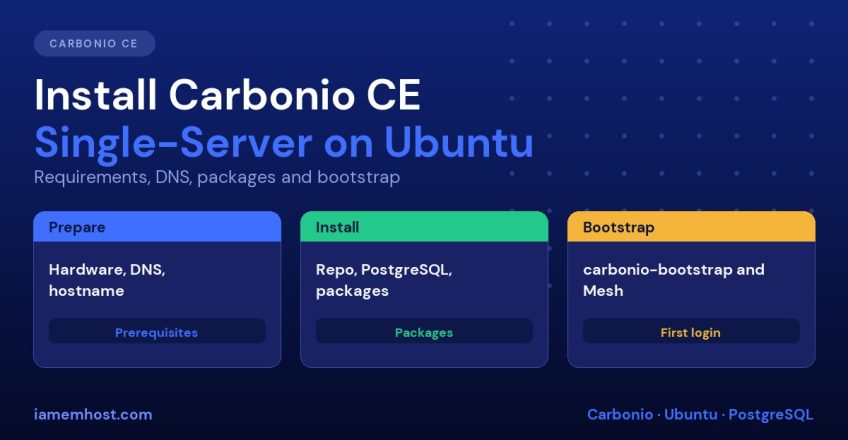

Carbonio Community Edition (CE) from Zextras is a free email and collaboration suite with webmail, calendar, contacts, files, chat and video, and it is a modern successor for many Zimbra users. This guide shows how to install Carbonio CE on a single Ubuntu server, from the hardware and DNS checks through to the first login. If you are still deciding between platforms, read our comparison of self-hosted email on Zimbra, Carbonio or Mailcow versus Microsoft 365 and Google Workspace first.
The commands below follow Zextras’ official documentation for the Carbonio CE 26.9 release line (checked on 11 November 2026). Package lists and versions change between releases, so always compare with the page for your version before running anything on a production server.
Carbonio CE Requirements
| Item | Requirement |
|---|---|
| Operating system | Ubuntu 22.04 LTS or 24.04 LTS (Server, not the minimised image), or RHEL 8 / 9. Other distributions are not officially supported |
| CPU | 4 cores minimum, 8 or more vCPUs recommended |
| RAM | 16 GB minimum, 32 GB or more recommended |
| Disk | 50 GB for the operating system and CE, plus space for mail. For example, 20 users with 10 GB quotas need roughly 250 GB |
| Software | Python 3 and Perl present, locale exactly en_US.UTF-8, no IPv6 entries in /etc/hosts |
| Conflicts | No other mail or web software on the server (Postfix, Webmin, Cockpit and similar) |
Use a fresh server. Carbonio installs its own mail transfer agent, proxy and database, and an existing mail stack will conflict with it.
Ports to Open
| Port | Purpose |
|---|---|
| 25 | Inbound SMTP (required) |
| 443 | Webmail and HTTPS (required, and WebSocket must be allowed for Chats) |
| 465, 587 | Mail submission (optional) |
| 80 | HTTP redirect (optional) |
| 143 / 993, 110 / 995 | IMAP and POP3 (optional) |
| 6071 | Admin Panel. Expose only if really needed; the docs recommend a VPN for admin access |
| 5222 | Chats (optional) |
| 20000-40000 UDP | Video server media (optional) |
Restrict the admin and IMAP ports with a firewall or VPN. See our Linux server hardening guide for the base firewall setup.
Step 1: Prepare DNS
The installer checks DNS, and installation is suspended if the A or MX records are wrong. Using mail.example.com and 203.0.113.124 as an example:
| Record | Value |
|---|---|
| A | mail.example.com points to your public IP |
| MX | example.com MX mail.example.com |
| PTR (reverse DNS) | Your IP resolves back to mail.example.com (recommended for spam filtering) |
SPF, DKIM and DMARC are recommended and are covered in Carbonio CE Setup After Install. Check what is published with dig:
dig +short A mail.example.com
dig +short MX example.com
dig +short -x 203.0.113.124
Step 2: Set the Hostname and Hosts File
hostnamectl set-hostname mail.example.comEdit /etc/hosts so the server’s own address resolves to its fully qualified name, and make sure there are no IPv6 entries:
127.0.0.1    localhost
172.16.0.10  mail.example.com mail
Use your server’s real private or public address in place of 172.16.0.10.
Step 3: Add the Zextras Repository
Create /etc/apt/sources.list.d/zextras.list (use jammy for 22.04 and noble for 24.04):
deb [arch=amd64 signed-by=/usr/share/keyrings/zextras.gpg] https://repo.zextras.io/release/ubuntu noble mainImport the repository signing key as described on the official installation page, store it in /usr/share/keyrings/zextras.gpg and make it world-readable (chmod 644). The RELEASE channel is the one to use in production. Use the RC channel only on test systems.
Step 4: Install and Prepare PostgreSQL 16
Carbonio needs PostgreSQL 16 for several of its components. Install it from the PostgreSQL (pgdg) repository, then create the administration role and database:
sudo -u postgres psql
CREATE ROLE carbonio_adm WITH LOGIN SUPERUSER encrypted password 'StrongPasswordHere';
CREATE DATABASE carbonio_adm OWNER carbonio_adm;
The documentation also asks for listen_addresses, max_connections = 500 and shared_buffers settings and an md5 line in pg_hba.conf. Follow the official page for the exact values, then restart PostgreSQL. Keep the database password safe, because you need it for the database bootstrap commands later. Export it as a variable to reuse in step 8:
export DB_ADM_PWD='StrongPasswordHere'Step 5: Update the System
apt update && apt upgrade -yStep 6: Install Carbonio CE Packages
Carbonio has an installation script for Ubuntu 22.04 and 24.04 (and RHEL 8) that automates package installation. It prints the Mesh and PostgreSQL passwords at the end, so save them. Review any script before running it as root. The alternative is a manual install, which is what we show here because it teaches you what is on the server.
On a single server, install every role from the package list on the official installation page. The main components are:
service-discover-server(Carbonio Mesh)carbonio-directory-server(LDAP),carbonio-mta,carbonio-proxy,carbonio-appserver,carbonio-user-management- Files, Tasks, Storages and Preview (
carbonio-files-ce,carbonio-tasks-ce,carbonio-storages-ce,carbonio-preview-cewith their database packages) - Docs and Chats (
carbonio-docs-connector-ce,carbonio-docs-editor,carbonio-ws-collaboration-ce,carbonio-message-broker,carbonio-message-dispatcher-ce) carbonio-videoserver-ce,carbonio-prometheus,carbonio-catalog,carbonio-memcachedand the-uipackages
Use the exact list in the documentation for your release, because package names and the set of roles change.
Step 7: Video Server Setting
Open /etc/janus/janus.jcfg and check nat_1_1_mapping. Set it to the server’s public IP, or to its private IP if the server is only used on a LAN. Then enable the service:
systemctl enable --now carbonio-videoserver.serviceStep 8: Run the Bootstrap and Mesh Setup
As root, start the initial configuration and confirm the settings it shows:
carbonio-bootstrapThe log is written to /tmp/zmsetup.*.log. It creates an administrator account named zextras@<your domain> without a password; you set it later. Then set up Carbonio Mesh and approve the pending services:
service-discover setup-wizard
pending-setups -a
systemctl restart carbonio-ws-collaboration-sidecar.service
The pending-setups command asks for the Mesh password stored in /var/lib/service-discover/password. Finally bootstrap the databases for Files, Tasks, Preview, Chats and the message dispatcher, using the PostgreSQL password:
PGPASSWORD=$DB_ADM_PWD carbonio-files-db-bootstrap carbonio_adm 127.0.0.1
PGPASSWORD=$DB_ADM_PWD carbonio-tasks-db-bootstrap carbonio_adm 127.0.0.1
PGPASSWORD=$DB_ADM_PWD carbonio-preview-db-bootstrap carbonio_adm 127.0.0.1
PGPASSWORD=$DB_ADM_PWD carbonio-ws-collaboration-db-bootstrap carbonio_adm 127.0.0.1
PGPASSWORD=$DB_ADM_PWD carbonio-message-dispatcher-db-bootstrap carbonio_adm 127.0.0.1
Step 9: Set the Admin Password and Log In
Switch to the zextras user and set a password for the administrator:
su - zextras
carbonio prov sp zextras@example.com 'ChooseAStrongPassword'
Then open the two interfaces:
- Webmail:
https://mail.example.com/ - Admin Panel:
https://mail.example.com:6071/
In the Admin Panel, go to Domains, open your domain’s General Settings and set the Public Server Host Name and Public Service Port (443). The next step, DNS authentication and certificates, is in our Carbonio CE post-install checklist.
Common Installation Problems
| Problem | Likely cause and fix |
|---|---|
| Installer pauses at DNS checks | The A or MX record is missing or wrong. Fix DNS and wait for propagation |
| Locale errors | Locale must be exactly en_US.UTF-8 |
| Services conflict on ports | Remove Postfix, Apache, Nginx or another service that is already using ports 25, 80 or 443 |
| Not enough memory | Below 16 GB RAM several services fail to start. Add RAM |
| Mesh setup waits forever | The Mesh password in /var/lib/service-discover/password is needed for pending-setups -a |
| Chats or video not working | Check WebSocket on 443 and the nat_1_1_mapping setting |
Because Carbonio runs many services, memory pressure is a common cause of odd failures; see Linux OOM killer troubleshooting if a service keeps disappearing.
Skip the Work: Carbonio on a Managed VPS
If you want Carbonio without handling the build and upgrades yourself, see our Carbonio CE VPS servers page.
Frequently Asked Questions
Can I install Carbonio CE on AlmaLinux or Rocky Linux?
The official requirements list Ubuntu 22.04 and 24.04 and RHEL 8 and 9. Other distributions are not officially supported.
How much RAM does Carbonio CE need?
The documented minimum is 16 GB, with 32 GB or more recommended, plus 4 CPU cores and 50 GB of disk before mail storage.
Is Carbonio CE free?
Yes, the Community Edition is free to use. Zextras also offers paid editions with additional features, so check the edition comparison for what you need.
Can I run Carbonio next to another mail server?
No. Remove other mail and web software before installing, or use a dedicated server.