
By default, Zimbra requires encrypted connections (TLS/SSL) for IMAP and POP3 authentication. Some legacy mail clients or scripts that cannot handle TLS may need clear-text (plain text) authentication enabled. This guide shows how to enable it via the Zimbra Admin Console and via CLI.
⚠ Security Warning: Plain-text authentication transmits credentials without encryption. Only enable this on internal networks or when clients connect over VPN. Always prefer STARTTLS or SSL/TLS instead.
Method 1: Zimbra Admin Console
Enable for IMAP
- Log in to the Zimbra Admin Console
- Go to Configure → Global Settings → IMAP
- Check “Enable Clear Text Login”
- Click Save
Enable for POP3
- Go to Configure → Global Settings → POP
- Check “Enable Clear Text Login”
- Click Save
Method 2: Zimbra CLI
# Run as zimbra user
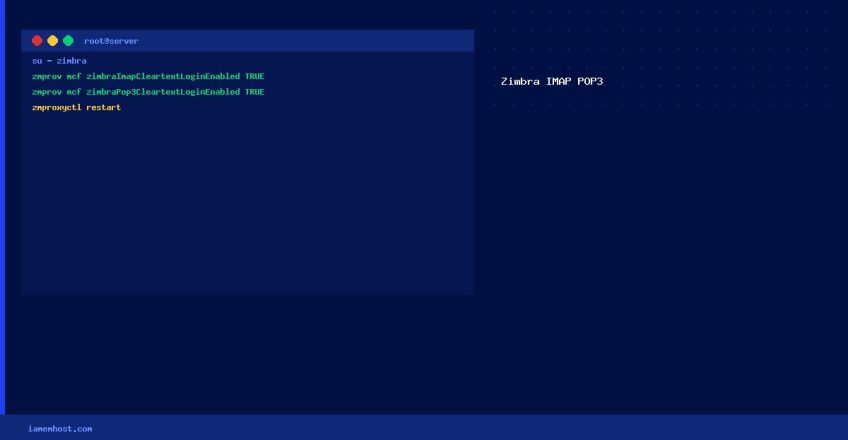
su - zimbra

# Enable clear-text IMAP login globally
zmprov mcf zimbraImapCleartextLoginEnabled TRUE

# Enable clear-text POP3 login globally
zmprov mcf zimbraPop3CleartextLoginEnabled TRUE

# For proxy (if using Zimbra Proxy)
zmprov mcf zimbraReverseProxyImapSaslPlainEnabled TRUE

# Restart the proxy service to apply
zmproxyctl restart
Verify Settings
# Check current values
zmprov gcf zimbraImapCleartextLoginEnabled
zmprov gcf zimbraPop3CleartextLoginEnabled
Recommended Alternative: Force STARTTLS
Rather than enabling plain-text login, configure clients to use STARTTLS on port 143 (IMAP) or 110 (POP3). This provides encrypted authentication while maintaining compatibility with most modern mail clients.

Restore a Single Table from a MySQL Dump File
Iamem Hosting